Hooq help centre

Workflows
The Workflows tab matches the statuses of the two projects, so that the copy follows when the original changes status. The tab is called Workflows in the app.
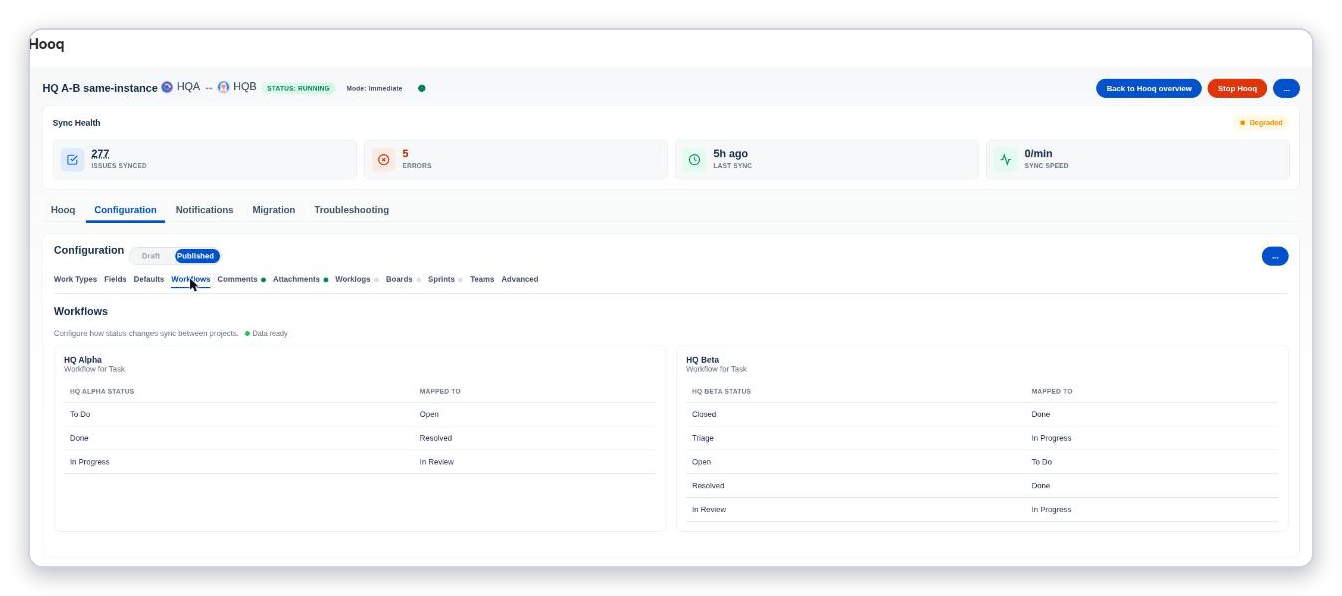
The Workflows tab: for each project, each status and the status it is mapped to in the other project.
Read the tables
The tab has one table per project, headed by the work type, for example Workflow for Task. Each row says: when a work item gets this status, move the copy to this status in the other project.
Set up a mapping
- Select Configure Workflows.
- Step 1: choose the workflow of each project (for example Workflow for Task) and select Next.
- Step 2: match each status of project A to a status of project B and select Next.
- Step 3: do the same for the other direction and select Save Mapping.
You should see: Workflow mapping saved successfully.
Good to know
- A status you do not match does not move the copy. Hooq records a warning, but warnings do not appear in the Troubleshooting tab.
- If a work item changes status several times quickly, the copy ends on the final status.
- The status you map to must be reachable from the copy's current status by a workflow transition.
Related pages
Want to raise a ticket? Click here (opens in a new tab)