Hooq help centre

How to link existing work items from another sync app
Goal
Keep working with the pairs you already have, but let Hooq do the syncing. You tell Hooq which field holds the partner work item key. Hooq links each pair and nothing is copied. After that you can switch off the other sync app.
Before you start
- Set up the Hooq (work types, fields, workflows) and test it with a work item or two. See Set up a Hooq.
- Pause the other sync app for these two projects.
- Make sure each pair has the partner key in one field on this instance, for example
ABC-369. - Leave Limit Work Items empty (no JQL and no filter) while you link. Set a limit afterwards if you want one.
Steps
Open Hooq from the Apps menu, select Open in the row of your Hooq, then open the Manual Link tab.
You should see: Configuration Check with a tick and Projects mapped, then the Reference Field card.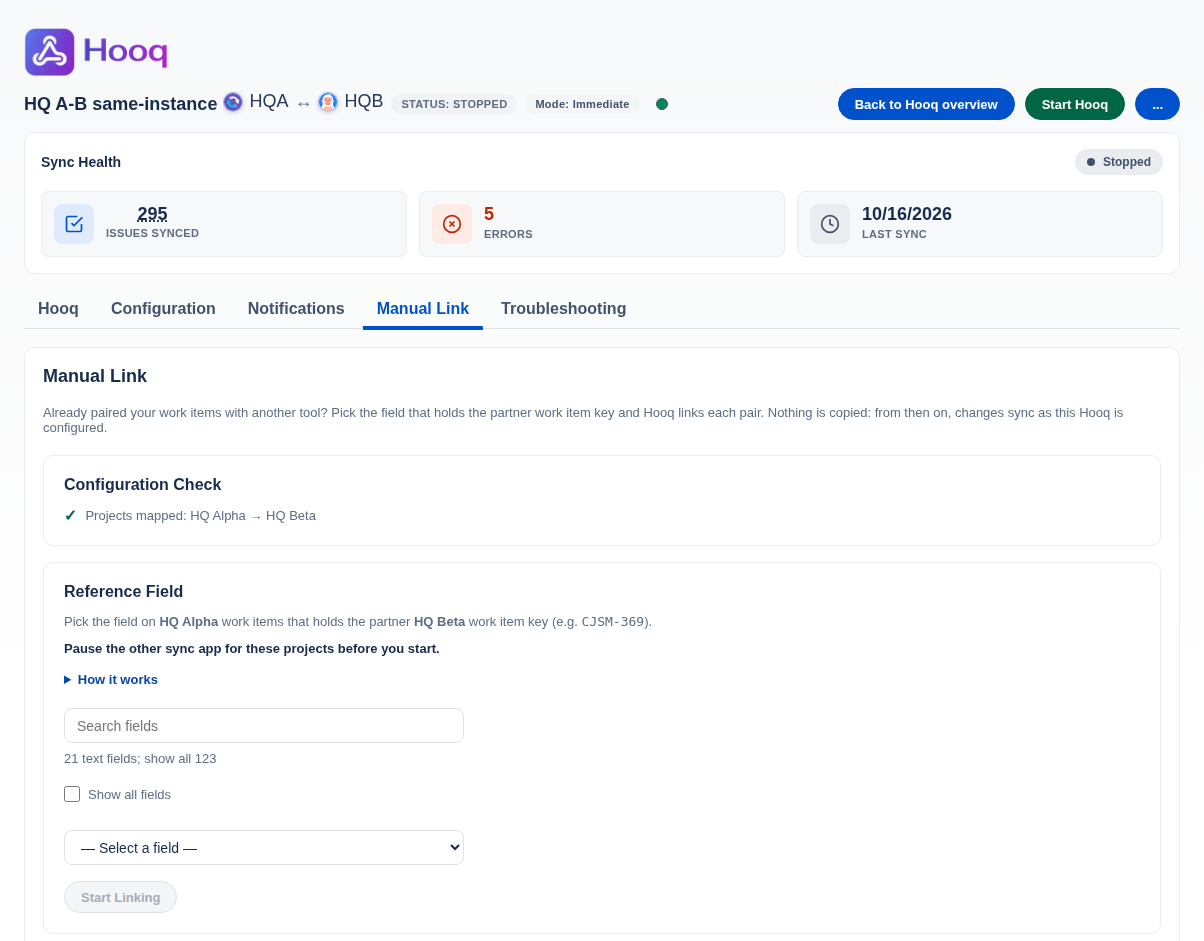
The Manual Link tab.
Check that the other sync app is paused. The tab reminds you: Pause the other sync app for these projects before you start.
Use Search fields to find the field that holds the partner key. If it is not in the list, tick Show all fields.
Choose the field (1 in the picture).
You should see: Field saved.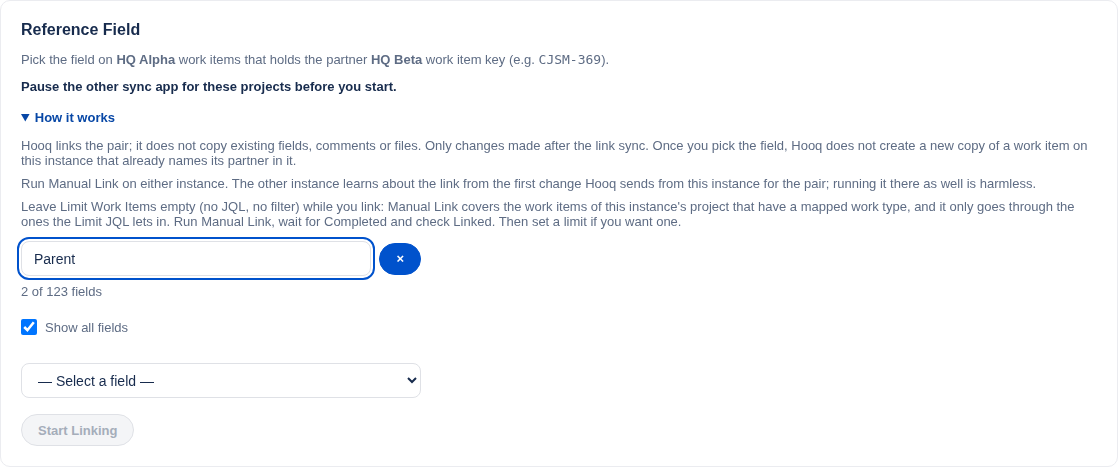
Choose the field (1), then select Start Linking (2).
Select Start Linking (2).
You should see: Link Status with Running.Wait for Completed. Check that Linked is the number of pairs you expect. Open one or two linked work items on the instance where you ran Manual Link and look at the Hooq panel.
Set the scope you want for this Hooq, publish it, and then switch off or remove the other sync app.
Expected result
- The pairs are linked. Nothing was copied, so no work item has new comments, files or field values because of the link.
- From now on, a change made on one work item syncs to its partner as your Hooq is configured.
- You can run Manual Link on either instance. It is enough to run it on one.
Common mistakes
- Leaving the other sync app running. Two apps then change the same work items.
- Starting the Hooq with a Limit JQL that matches work items. Start with Limit Work Items empty, link first, then set the scope.
- Choosing a field that does not hold the partner key. The pairs are then Skipped.
- Looking for the field in the default list when the key is stored in a label or a select list. Tick Show all fields.
- Expecting old comments or files to appear on the partner. Manual Link copies nothing, and only changes made after the link sync.
Related pages
Want to raise a ticket? Click here (opens in a new tab)