Hooq help centre

Reconnect a connector
Goal
Repeat the handshake of a connector that stopped working, or that shows the status Failed.
Steps
Open Hooq, select ... and then Connectors.
Select Open in the row of the connector, then open the tab Activate. You can also use the ... menu of the row.
You should see: the partner instance, the status and a button Reconnect (Activate if the status is Failed or Pending).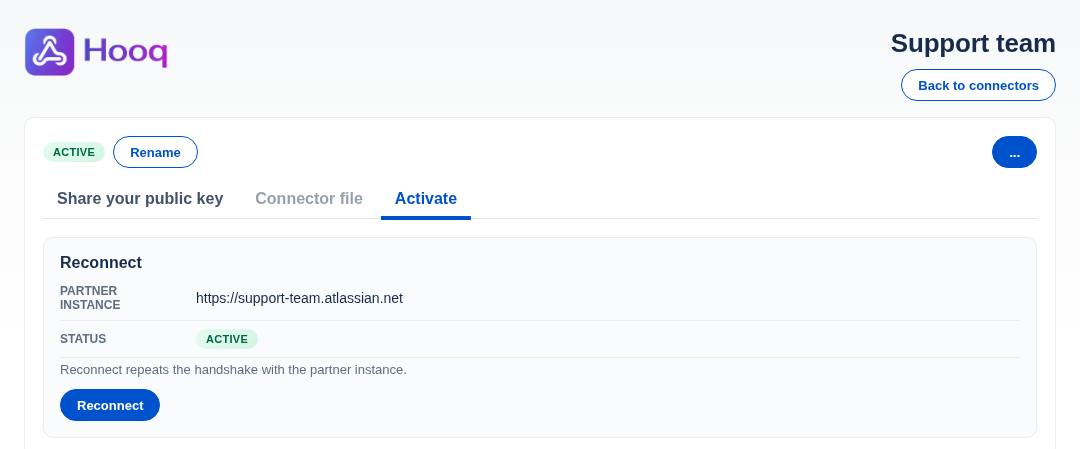
The Activate tab.
Select Reconnect.
You should see: the message Connector reconnected. and the status Active.
Expected result
Reconnect repeats the handshake with the partner instance. If it does not work, Hooq shows the reason and the status can change to Failed. See Troubleshooting.
Common mistakes
- Reconnecting when the partner instance runs a different version of Hooq. Both instances need the current version.
- Creating a new connector instead. Hooq allows one connector per partner instance.
Related pages
Want to raise a ticket? Click here (opens in a new tab)