Hooq help centre

Connectors
A connector is the trusted link between the Hooq on your Jira instance and the Hooq on another Jira Cloud instance. You need a connector only for a Hooq between two different instances (Cross instance). A connector must show the status Active before you can use it in a Hooq. One connector can be used by several Hooqs.
In Hooq, the word instance means a Jira Cloud instance, for example your-company.atlassian.net.
Open the Connectors page
Open Hooq from the Apps menu in Jira.
Select ... next to New Hooq, then Connectors.
You should see: the page Cross-Instance Connectors.
The ... menu on the Hooq overview has two items: Getting Started and Connectors.
You can also open the page from Configure Connector on the Hooq Get Started page in Jira (Manage apps), or from the Configure Connector button on the Getting Started page inside Hooq. When you create a Hooq with another Cloud instance and no connector exists yet, the New Hooq window offers Open Connectors.
To bookmark the page, open Hooq, copy the address from your browser and add ?section=connectors at the end. The addresses ending in ?section=getstarted and ?section=overview open the Getting Started page and the Hooq overview. Any other value opens the overview.
The list of connectors
The page is built like the Hooq overview. At the top right are New Connector, Reload and Back to Hooq. The table has the columns Name, Partner instance, Status and Actions. A new instance shows No connectors yet. Create one to start pairing instances.
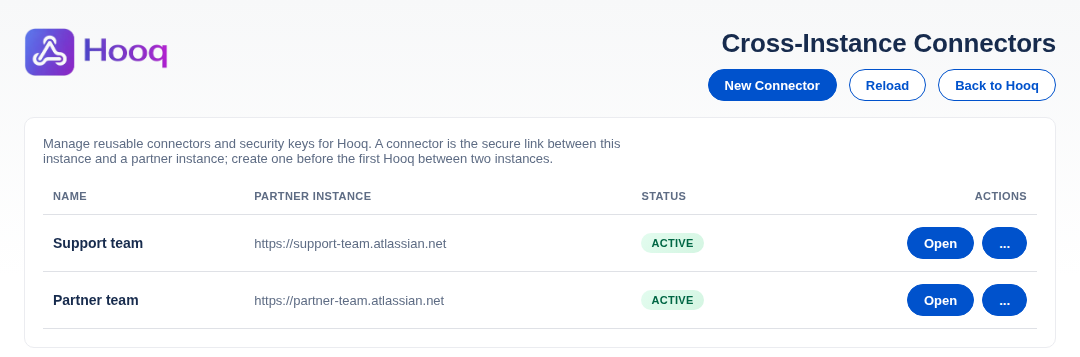
The Connectors page. The names and addresses in this picture are examples.
- Open opens the connector on its own page (see below).
- The ... button of a row opens a small menu with Activate (or Reconnect for an Active connector) and Delete. A Draft has only Delete.
- Delete asks first, inside the page: Delete <name>? This action cannot be undone. Select Delete connector to go on or Cancel to keep the connector.
- Reload reads the list again.
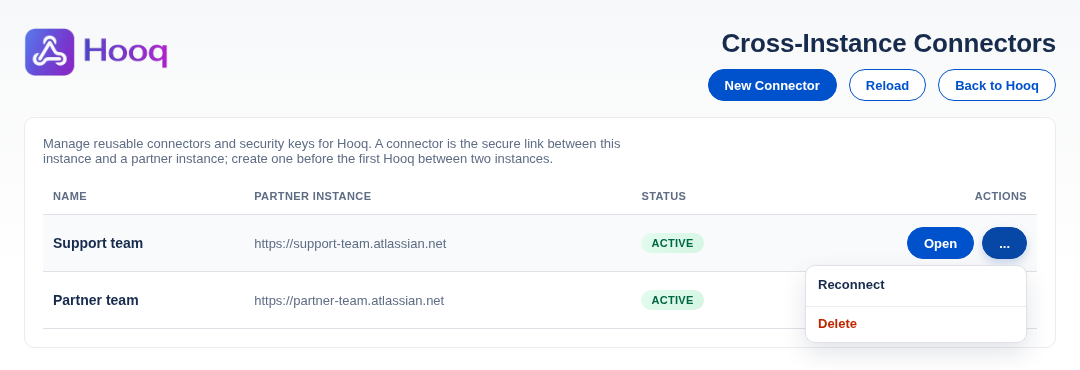
The ... menu of a row of an Active connector.
Statuses
| Status | What it means | What you can do |
|---|---|---|
| Draft | You started the connector but no partner is saved in it yet. Hooq keeps the draft for you. | Open it to continue, or delete it. |
| Pending | The connector file from your partner is saved. The handshake with the partner is not done yet. | Open it and select Activate. |
| Active | The handshake is done. You can create a Hooq with this partner instance. | Use it in New Hooq. Select Reconnect if something stops working. |
| Failed | The handshake did not work. The page shows the reason. | Select Activate (or Reconnect) again. See Troubleshooting. |
The page of one connector
Select Open in a row, or New Connector, to open a connector. Its name is the title of the page. Under the title you see the status, Rename and a ... menu with Delete connector. Back to connectors returns to the list. The connector has three tabs:
1. Share your public key
A public key is a piece of text that identifies the Hooq on your instance. It is meant to be shared with your partner. It is not a password.
- Download public key saves a file called
<subdomain>.hooqkey, for exampleyour-company.hooqkey. Send it to the administrator of the partner instance. - Copy public key copies the key as text, for people who prefer to paste it.
- Reload key reads the key again. It does not create a new key.
- Generate for partner is for the other direction: upload the key file you received from your partner (or paste the key) and select Generate. Hooq makes a connector file for your partner. Select Download connector file (it is named
<your-subdomain>-for-<partner-subdomain>.hooqconnector) or Copy connector code. Send it to your partner within 5 minutes. - Next goes to the second tab. Later returns to the list and keeps the connector as a Draft.
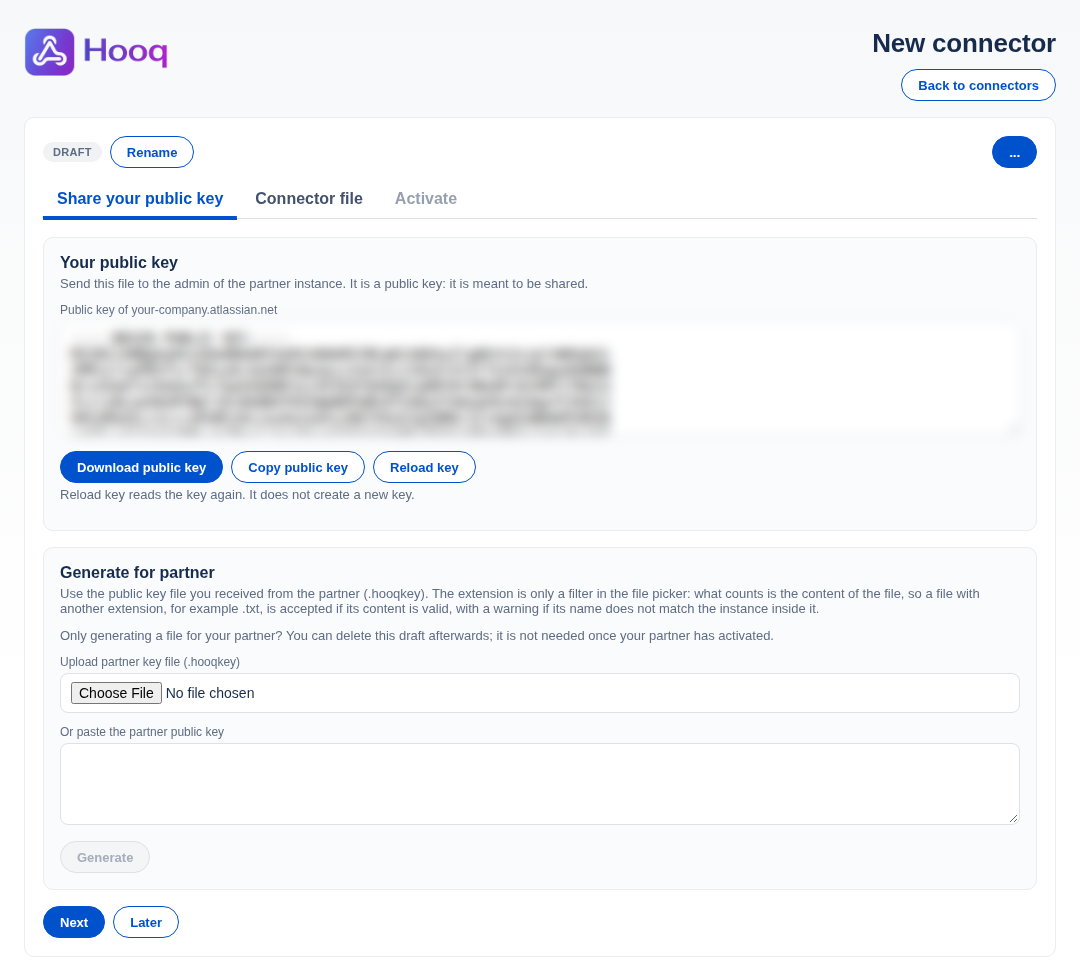
The first tab. The public key is blurred in this picture.
2. Connector file
Upload the connector file you received from your partner (or paste the connector code), check the Connector name and select Save. When you upload a file, Hooq suggests the partner's name. The status changes to Pending and the Activate tab opens. This tab is available only for a Draft.
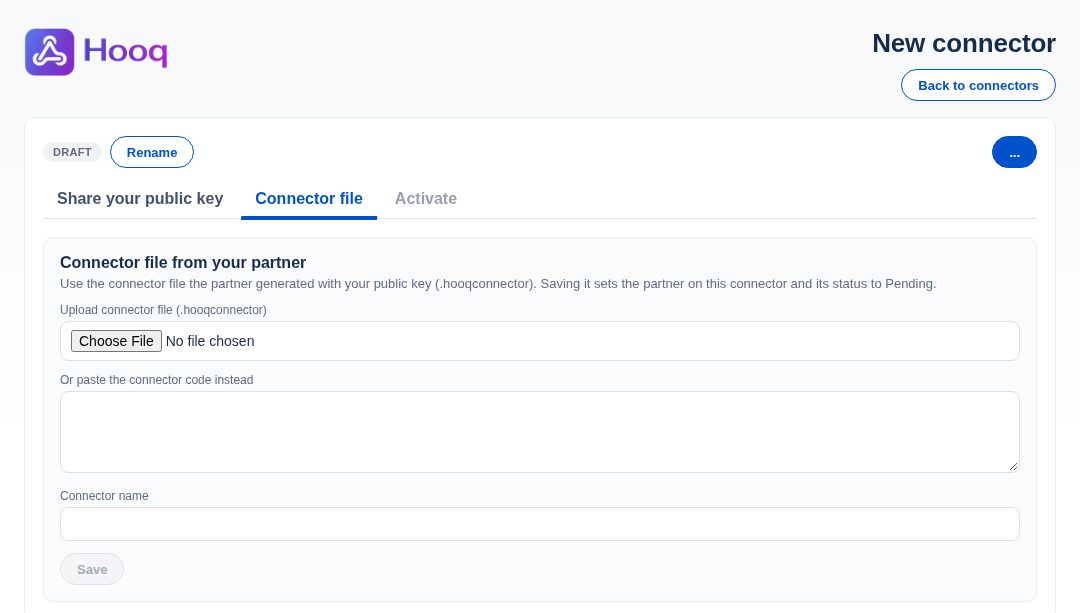
The second tab.
3. Activate
The tab shows the Partner instance and the Status. Select Activate to complete the handshake with the partner instance. Do it when your partner is ready. Hooq shows Connector activated. and the buttons Back to connectors and Back to Hooq. For an Active connector the button reads Reconnect: it repeats the handshake. This tab is available once the connector file is saved.
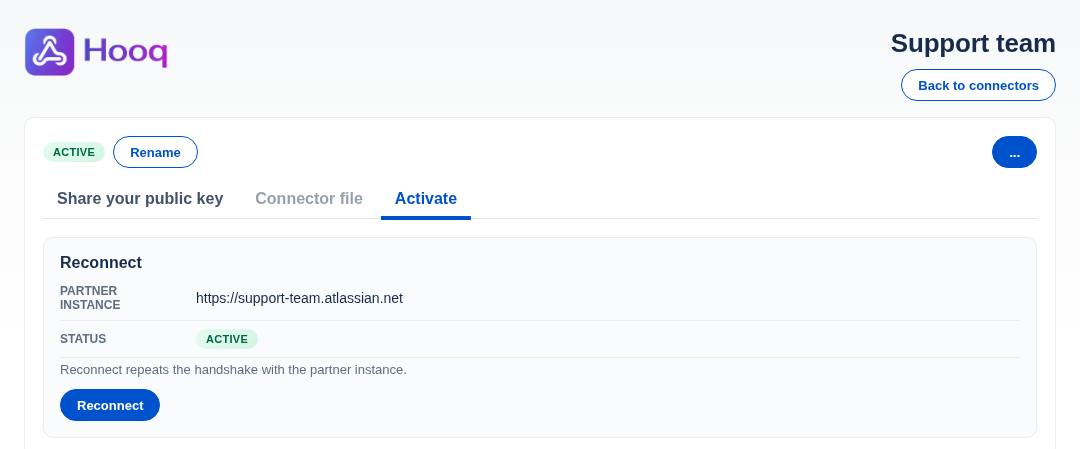
The third tab of an Active connector.
A connector opens on the tab where you left it: a Draft on the first tab, a connector with a partner on Activate.
Connect two instances
In short: the administrator of instance A sends a public key file to the administrator of instance B. B sends back a connector file made with that key. A saves the file and activates. B then gets an Active connector for A without doing anything more. The numbered steps are in Connect two instances with pairing files.
The pairing files and the checks
| File | Name | Contains |
|---|---|---|
| Public key file | <subdomain>.hooqkey | The public key of an instance and its address. |
| Connector file | <from>-for-<to>.hooqconnector | The connector code for one partner. A connector file is valid for 5 minutes. |
- A file must be under 16 KB and must be plain text. Hooq refuses a larger file, an empty file, a file that is not text and a file that is not a Hooq pairing file. Nothing changes when a file is refused.
- Hooq reads the content of a file and not its name. A file with another name, or another extension such as .txt, works if its content is right. If the name does not match the instance inside the file, Hooq shows a warning.
- If you upload a key file where a connector file is expected (or the other way round), Hooq tells you which one is needed.
- The file says which instance it comes from. Hooq compares this with the partner it finds inside the connector code after you select Save, and warns you if they differ.
- Before you save, Hooq warns you when the connector file was made for another instance, or is older than 5 minutes.
The exact messages, and what to do, are in Troubleshooting.
Rules and limits
- One connector per partner instance. Hooq refuses a second connector for an instance that already has one, whatever you name it. Use Activate or Reconnect on the existing row, or delete it first.
- Up to 5 unfinished connectors (Drafts) on an instance. Delete the ones you do not need.
- A connector name can have up to 255 characters.
- Both instances must run the current version of Hooq. Connecting instances that run different versions is not supported.
- Only Jira administrators can use the Hooq page and the Connectors page. Other people who open Hooq from the Apps menu see a note that Hooq is managed by Jira administrators.
Delete a connector
Delete removes the connector on your instance and, through the connection, on the partner instance as well. A Draft was never shared, so deleting it affects nobody else. A Hooq relies on its connector to talk to the partner instance, so delete a connector that Hooqs use only when you want to end that link.
Common mistakes
- Waiting too long: a connector file is valid for 5 minutes. Generate a new one.
- Using the key file of the wrong instance. Check the name inside the warning that Hooq shows.
- Creating a second connector for the same partner. Reuse the first one.
- Looking for the partner in New Hooq before the connector is Active: the list of partner instances stays empty.
- Leaving drafts around. You can keep at most 5.
Related pages
Choosing a sync app? See the 57 questions to ask any Jira to Jira sync app and Jira to Jira sync apps compared.
Want to raise a ticket? Click here (opens in a new tab)