Hooq help centre

Advanced
The Advanced tab holds options that change how Hooq behaves. The tab starts with a yellow reminder to review them carefully before applying changes. Most settings have a column per project.
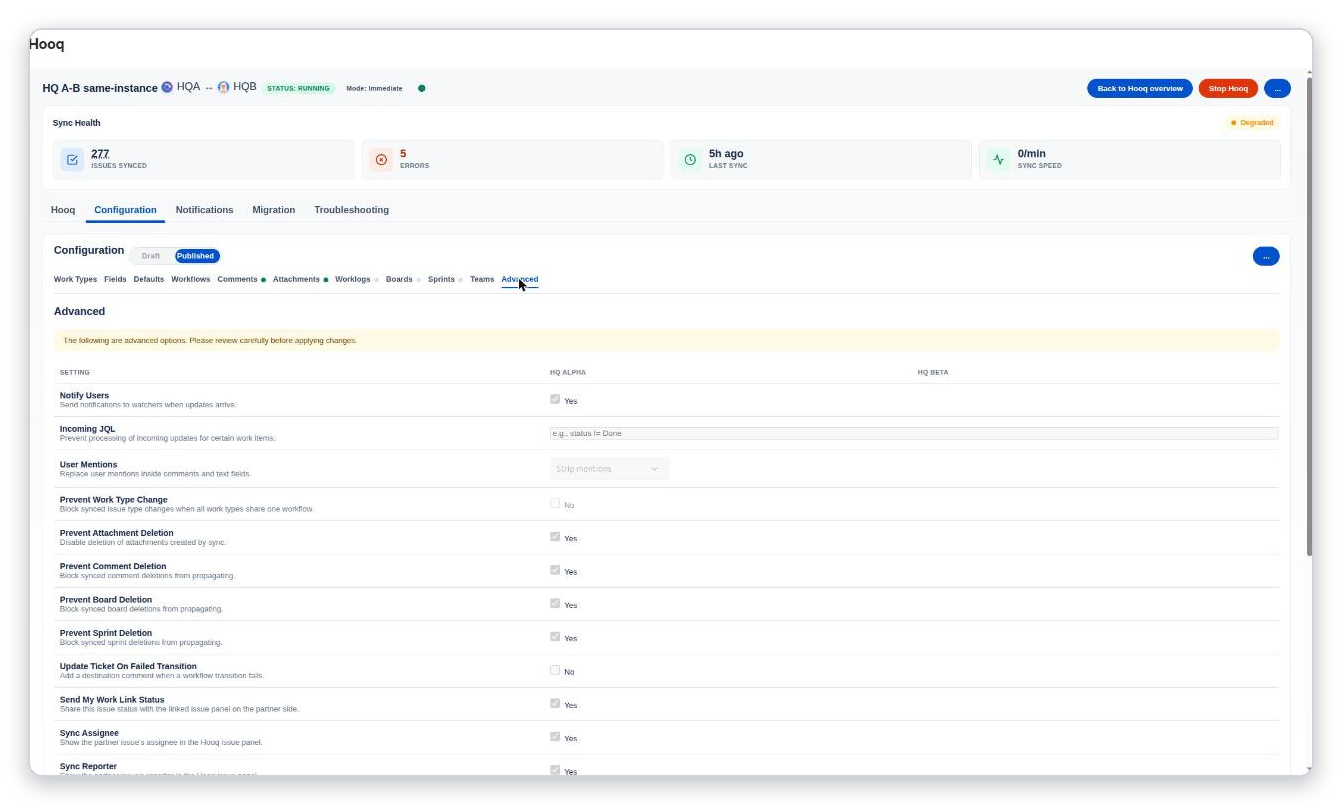
The first part of the Advanced tab.
Settings
| Setting | What it does |
|---|---|
| Notify Users | Controls whether Jira notifies watchers when Hooq repairs the images in the description of a copy on the same instance. When off, that repair does not notify watchers. It does not switch off notifications for other updates Hooq makes. |
| Incoming JQL | Saved with the configuration but not used yet: Hooq does not use it to skip incoming updates today. Leave it empty. |
| User Mentions | Replace user mentions inside comments and text fields: Strip mentions or Keep mentions. |
| Prevent Work Type Change | Block synced work type changes when all work types share one workflow. When the mapped work types do not share one workflow, the setting cannot apply: the control is greyed out, shows the value that is saved and says Not in effect with the reason. |
| Prevent Attachment Deletion | Do not delete attachments that were created by sync. |
| Prevent Comment Deletion | On (the default): deleting a comment does not delete its copy. Off: deleting an original comment also deletes its copy, on one instance and between two instances. Deleting a copy never deletes the original. See Comments. |
| Prevent Board Deletion / Prevent Sprint Deletion | Block synced board or sprint deletions from propagating. |
| Update Ticket On Failed Transition | Add a comment on the destination work item when a status change fails. |
| Send My Work Link Status | Share this work item's status with the Hooq panel on the other side. |
| Sync Assignee | Show the partner work item's assignee in the panel. When off, the Hooqed Assignee row shows Not synced. |
| Sync Reporter | Show the partner work item's reporter in the panel. |
| Issue Lifecycle Handling | What to do when the other work item is moved or deleted. For a move: Only update Sync Panel (Default) or Move to configured status (choose a local status that can be reached by a workflow transition). A delete locks the panel actions and keeps the key of the other work item. |
| Correlation Field / Correlation Status | Name of a text field that stores the same value as Hooqed With or Hooqed With Status from the panel (a read-only text field is best). |
The tab has its own Save Advanced button when you are editing.
Saving this tab
Saving the Advanced tab changes only the settings you changed. A setting you did not touch keeps the value it had, also when its control is greyed out. In earlier versions a Save could switch off Prevent Work Type Change without you touching it.
Related pages
Want to raise a ticket? Click here (opens in a new tab)