Hooq help centre

Troubleshooting
When something does not sync as expected, check this page first.
The Troubleshooting tab
Open Hooq from the Apps menu (a Jira administrator is needed), open the Hooq, then select the Troubleshooting tab.
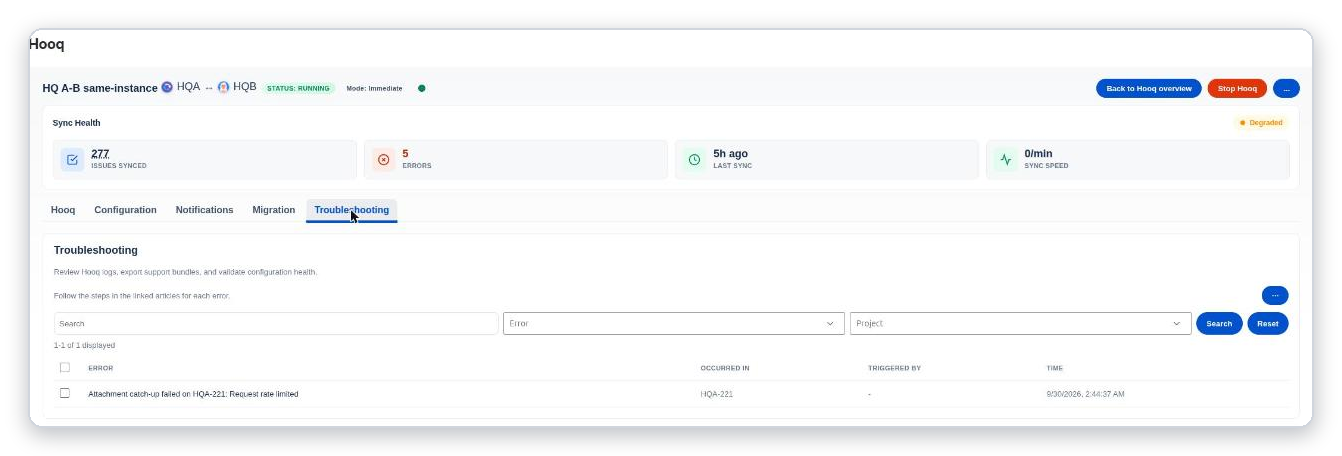
The Troubleshooting tab.
- The table lists recent errors with the columns Error, Occurred in (the work item), Triggered by and Time. A line above it says how many are displayed.
- Search filters by text. Error filters by kind: All shows every entry, Rate limit shows the entries about rate limiting, and Failure shows the others. Select the Search button to apply the filters and Reset to clear them. If the list looks empty or old, select Search.
- Project shows only the entries that name a work item of the project you pick. An entry that names no work item cannot be matched to a project, so it is not shown while a project is selected.
- The ... menu above the table has Refresh, Clear All Errors and Create support ZIP.
- Tick entries and select Clear Errors to remove ones you have dealt with.
- The header of the Hooq page shows how many errors there are (Sync Health).
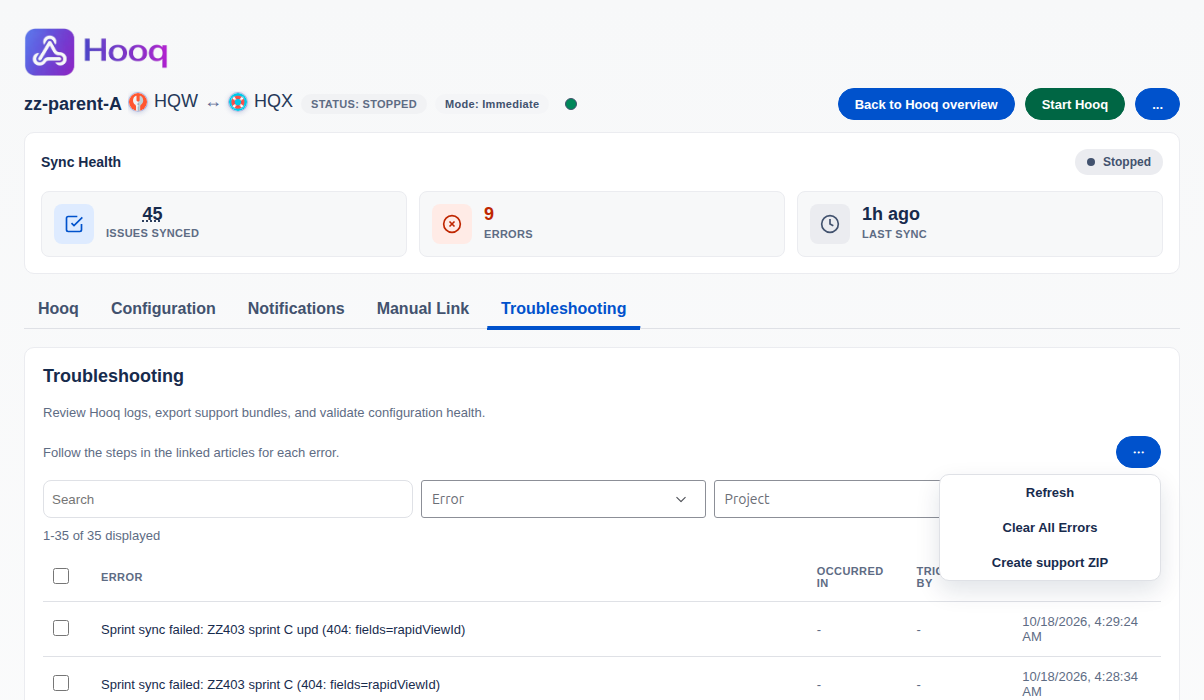
The ... menu above the Troubleshooting table.
The header menu
The ... menu in the header of a Hooq has five items: Resync, Download Hooq work items, Reset sync health, Documentation and Create support ZIP. See The Hooq tab and the header.
Resend a work item (Resync)
- Open the work item in Jira.
- In the Hooq - Work Sync Panel, select Resync.
- Wait for the message Resync completed.
Resync sends the current fields, status, comments and attachments again. It does not create a copy for a work item that has none. For many work items, use Resync from the Hooq header menu. See Resync.
Hooq also retries some failed creates, comments and attachments by itself a few times. Other failures are not retried; use Resync once you have fixed the cause.
Attachment not copied: file too large
What you see: Attachment not copied: <file name> (<size>) is larger than the cross-instance limit of 3.5 MB on <work item>. in the Troubleshooting tab.
What it means: Between two different instances a file can be up to about 3.5 MB. The rest of the work item synced.
What to do: Attach the file to the other work item by hand, or make it smaller and upload it again. On one instance there is no Hooq limit. See How to handle a file larger than 3.5 MB.
Update skipped: link missing
What you see: Issue update skipped: link missing on <work item>. Similar lines exist for comments, attachments and status changes (for example Comment skipped: link missing on ...).
What it means: Hooq does not know a partner for this work item, so it skipped the update. This is normal for a work item that was created before the Hooq started, or that does not match the Hooq's limit. It can also mean that a copy was not fully created.
What to do: Open the work item and look at the panel. If it says This issue is not Hooqed, the work item is not part of the Hooq. If you expected it to be, tell your administrator and give the work item key. If you linked the pair with Manual Link on the other instance, the pair may not be known here until the first change for it arrives; nothing is sent in the meantime, and that is safe. See Manual Link.
The copy's status does not follow (no workflow mapping)
What you see: The status of the original changes but the copy stays where it was. Hooq records the warning Transition skipped ...: no workflow mapping covers source status "<status>". Warnings are not shown in the Troubleshooting tab, so the missing status is usually found by comparing the two projects.
What it means: The status of the original is not matched to any status in the other project.
What to do:
- Open the Hooq and go to Configuration, then the Workflows tab.
- Add a match for the missing status.
- Publish the configuration.
- Change the status again, or use Resync on the work item.
The warning text says Workflow tab. In the app the tab is called Workflows.
A file or comment was deleted and the other side still has it
A deleted file is kept on the other side while Prevent Attachment Deletion is on in the Advanced tab. A comment copy is kept while Prevent Comment Deletion is on. Deleting an attachment that is already gone on the other side does no harm.
If Prevent Comment Deletion is off and the copy of a deleted comment is still there, check these causes: the comment was copied before this release, the Hooq was stopped when the comment was deleted, or the deleted comment was itself a copy (deleting a copy never deletes the original). Delete the copy by hand.
A worklog was not copied
When Hooq skips a worklog on purpose, it does not list it in the Troubleshooting tab. Check these causes in order:
- The Worklogs tab is on Disabled, or its direction does not allow this side to send.
- The work item has no copy yet. See the panel.
- The worklog is an edit of an existing worklog. Edits are not synced.
- The worklog was logged by Hooq itself, because it is a copy.
- The worklog is restricted to a project role and the Hooq user is not a member of that role in the project of the original. Ask a project administrator to add it to the role.
Filter sync search failed (400)
What you see: Older entries such as Filter sync search failed (400) after a pass of Limit by Filter.
What it means: Earlier versions added this entry at the end of every filter pass although the pass had finished. Since this release a pass ends without it. Entries that are already in the list stay until you clear them.
What to do: Nothing. Select the entries and use Clear Errors if you want them gone.
A work item was deleted or moved
Hooq never deletes the other work item. Its panel shows a red message (The hooqed work item has been deleted. or ...has been moved.) and This work item is no more hooqed. The buttons are hidden. This is expected.
Syncs are slow or delayed
Under heavy load, Jira and Forge limit how fast an app can work, and a change can arrive late. In the Troubleshooting tab the Error filter has the value Rate limit for such entries (for example Request rate limited). Wait a few minutes. If a work item still has not arrived after that, use Resync.
Hooq status shows Paused or Stopped
A paused or stopped Hooq does not sync. Start it again from the Hooq page. If a license message appears, ask your site administrator to check the Hooq license. If the header shows STOPPED just after you started, reload the page: it can be out of date for a few seconds.
The panel shows Unable to load Hooq status for this issue
What you see: a red message in the panel instead of the rows.
What it means: the panel could not read the status. This is usually short-lived.
What to do: wait. The panel tries again by itself and waits longer after repeated failures. Reload the work item if it stays this way, and tell your administrator.
Hooq dashboard shows: Hooq dashboard data is available to Jira administrators.
What it means: the Hooq dashboard gadget is for Jira administrators only for now. This is expected for other users. Ask a Jira administrator.
Connector problems
These messages appear on the Connectors page, inside the connector page, or in the New Hooq window. They are about connecting two instances. See Connectors.
A connector for this instance already exists
What you see: A connector for this instance already exists: <name> (status: <status>). Use Activate (or Reconnect) on that row instead of adding it again.
What it means: You can have one connector per partner instance, and one already exists for this partner.
What to do: Close the draft or delete it. Use Activate or Reconnect on the existing row. To start again, delete the existing connector first.
The connector code has expired, or cannot be decrypted
What you see: Connector code has expired. Ask the partner to generate a new code. or Unable to decrypt connector code. Verify it was generated for this instance.
What it means: A connector file is valid for 5 minutes. A file that is older, or that was made for another instance, is refused. The draft stays as it was.
What to do: Ask your partner to generate a new connector file with your public key and save it within 5 minutes. Check that the partner used the key file from the right instance.
A warning appears when you pick a file
What you see: This file is older than 5 minutes; the code may be refused: generate a new file. or This connector file was made for <instance>, not for this instance (<instance>). Accepting it will probably fail. or The file name (<name>) does not match the instance inside the file (<instance>). Check that it is the right file; the content is what counts.
What it means: The file looks old, or looks like it is meant for another instance, or its name does not match its content. A warning does not stop you from going on.
What to do: Check that you picked the right file. If it is old, ask for a new one. If the name only differs because you renamed the file, you can go on.
You pressed Save and Hooq warns about another instance
What you see: The file said it comes from <instance>, but the connector code belongs to <instance>. Do NOT press Activate unless <instance> is the instance you expect; otherwise delete this connector on the Connectors page.
What it means: The instance named in the file is not the one the connector code really belongs to.
What to do: Do not activate unless the second instance is the one you expect. Otherwise delete the connector and ask your partner for a new file.
The file is refused
What you see: Messages such as The file is too large (<n> KB). A pairing file is under 16 KB., The file is empty., The file is not a text file (it is not valid UTF-8)., This is not a Hooq pairing file (it is not valid JSON). or This is a connector file (.hooqconnector), but a public key file (.hooqkey) is needed here.
What it means: The file is not a Hooq key file or connector file, or it is the wrong kind for this field. Nothing changed.
What to do: Pick the right file. A public key file is used under Generate for partner. A connector file is used on the tab Connector file. If the file was changed on the way, ask for it again.
You can have at most 5 unfinished connectors
What you see: You can have at most 5 unfinished connectors. Finish or delete one first.
What it means: Your instance already has 5 Drafts.
What to do: Open the Connectors page and delete the drafts you do not need. See Resume or delete an unfinished connector.
The connector status is Failed, or Handshake failed appears
What you see: Handshake failed (status: <number>, reason: <text>). or the status Failed.
What it means: The partner instance did not accept the handshake.
What to do: Check that Hooq is installed on the partner instance, that both instances run the current version, and that your partner has not deleted the connector. Then select Activate or Reconnect again. If it still fails, contact support (see Contact support below) with the message.
The public key does not load
What you see: Public key is unavailable right now. Click Reload key to retry. or Unable to load the public key. Click Reload key to retry.
What it means: Hooq could not read the key at this moment.
What to do: Select Reload key. It reads the key again and does not create a new one.
The file cannot be downloaded or copied
What you see: The address of this instance could not be read, so no file can be downloaded. Reload the page and try again. or The key could not be copied automatically. Select the text in the box and copy it.
What it means: Your browser did not let Hooq save a file or copy text, or the page was not fully loaded.
What to do: Reload the page and try again. If copying is blocked, select the text in the box and copy it yourself.
The partner does not appear in New Hooq
What you see: No partner connectors available. Add one on the Connectors page to continue.
What it means: This instance has no Active connector yet.
What to do: Select Open Connectors, finish the connector and activate it. On the partner instance, select Reload to see the new Active row.
Contact support
Select Create support ZIP in the Troubleshooting tab menu or in the header menu, note the work item key and what you did, and send both to support.
Related pages
Want to raise a ticket? Click here (opens in a new tab)