
 MacroMintConfluence Cloud
Six page components in one brand that administrators set once
Callout, Steps, Cards, Button, KPI and Status components for Confluence pages. Admins set the colour, corners and spacing once, approve the styles authors may use, and see where components are used.
Callout, Steps, Cards, Button, KPI and Status components in a brand your administrators set once.
- Change history for every brand edit
- Usage report by page and space
- Colours that are hard to read are refused
How MacroMint works
One site brand applied to every component
MacroMint gives Confluence pages one consistent, branded look without custom HTML. Admins set the colour, corners and spacing for the whole site, and every MacroMint component follows. It runs on Atlassian Forge and sends nothing outside Atlassian.
One site brand, controlled by admins
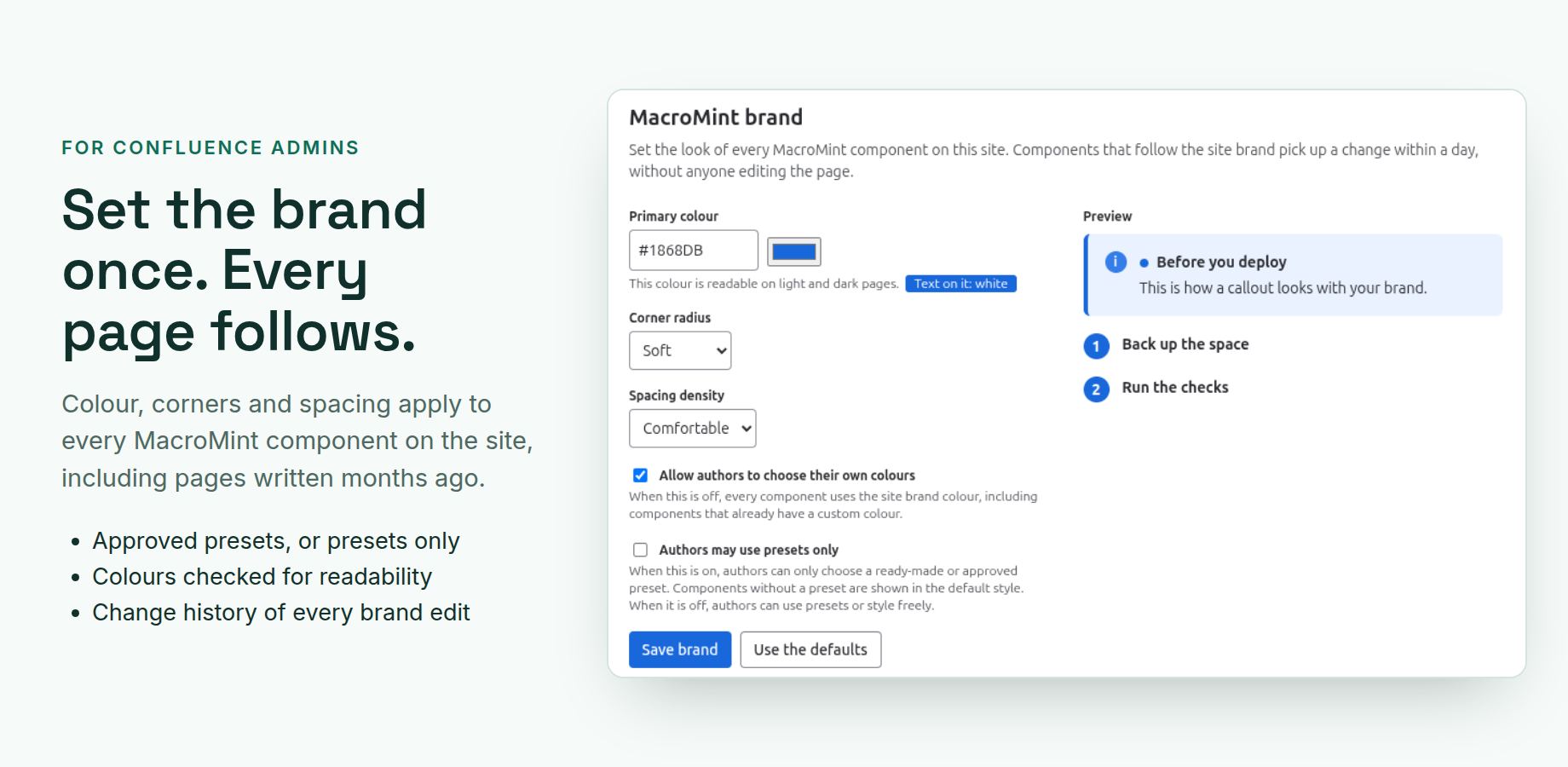
A Confluence admin sets the primary colour, the corner style and the spacing once. Every component that follows the site brand picks up a change within a day, including pages written months ago, without anyone editing them.
Approved presets, or presets only
Admins save approved styles that every author sees in the editor. Update a preset and every component that uses it follows. Switch on presets only, and authors choose from the approved and ready-made styles.
Colours people can read
A colour that would be hard to read on light or dark pages is refused, with the reason. Admins can switch custom colours off, and every component then uses the site brand colour.
See who changed what, and where it is used
A change history shows who changed the brand or a preset, and when. A usage report lists the pages that use MacroMint components, by space and component.
Your content stays on Atlassian
MacroMint runs on Atlassian Forge, with no servers of its own and no outside address. It is eligible for Runs on Atlassian. Component text is saved in the Confluence page, like any macro.
Normal Confluence content
Each component is a Confluence macro. Its text shows in Confluence search, the page exports to PDF, and every component follows Confluence’s light and dark themes.
In Confluence
What MacroMint looks like
Features
MacroMint features
Six components
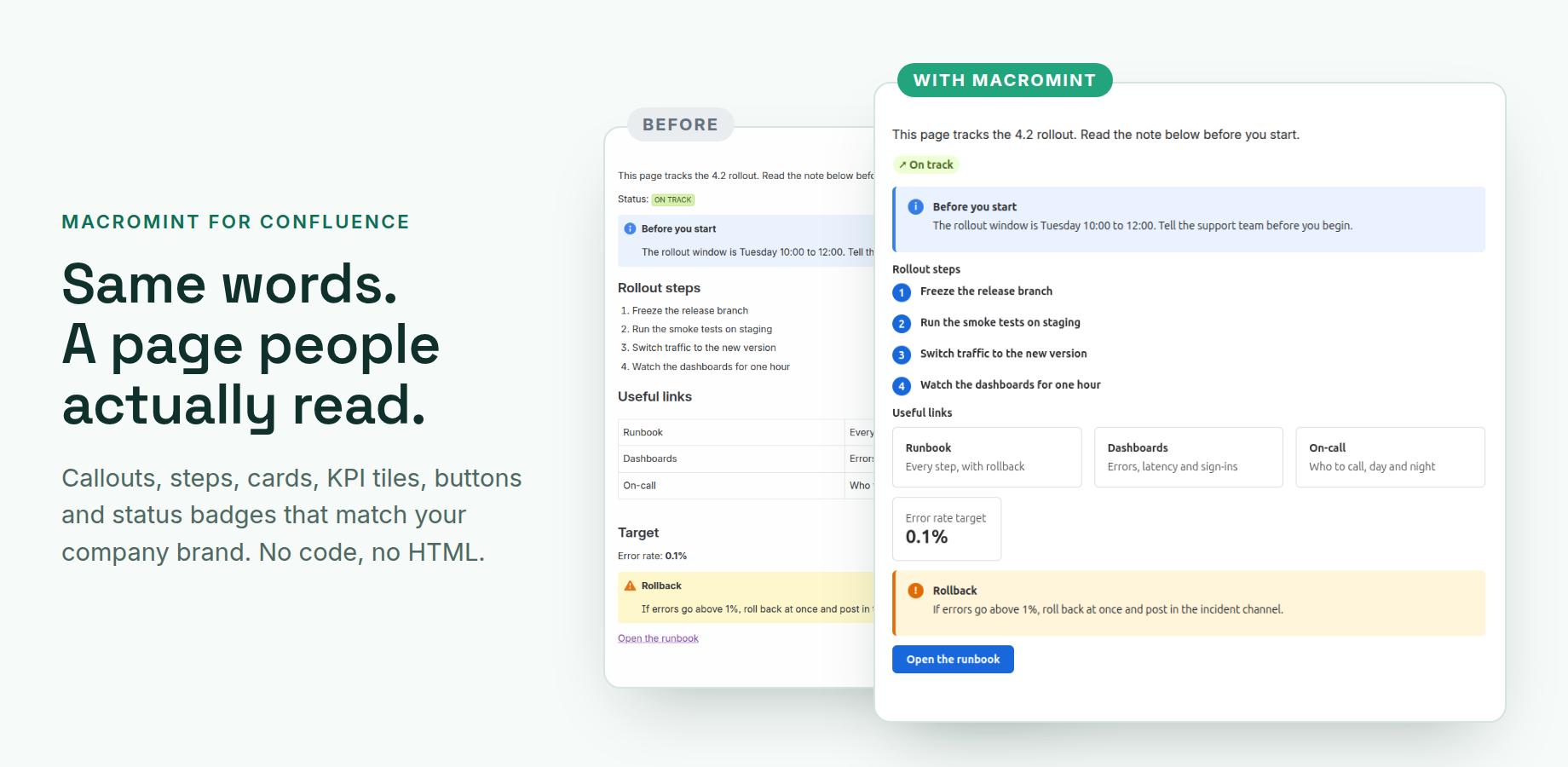
Callout, Steps, Cards, Button, KPI and Status. Pick one from the slash menu, fill in a form with a live preview, and save. No code and no HTML.
Brand kit and governance
Site brand, approved presets, a presets-only switch, a custom colour switch, a readability check, a change history and a usage report, all on one admin page.
Readability check
A colour that would be hard to read on light or dark pages is refused, with the reason. Admins can switch custom colours off.
Change history and usage report
A change history shows who changed the brand or a preset, and when. A usage report lists the pages that use MacroMint components, by page and space.
Components
The six components
Callout
A block that stands out: info, note, success, warning, danger or discovery. The text is typed on the page.
Steps
A numbered process, such as a runbook or onboarding. Each heading you type on the page becomes a step.
Cards
A grid of up to 24 cards that link to pages, people or resources, in 2, 3 or 4 columns.
Button
One clear call to action, with a label, a link and an icon.
KPI
One number with a label, a trend, whether up is good or bad news, and an “As of” date.
Status
A small badge: On track, At risk, Blocked, Done or Not started.
Setup
Setup in three steps
Install from the Marketplace
MacroMint is coming to the Atlassian Marketplace. Once it is listed, a Confluence admin installs it on your Confluence Cloud site.
Set your brand
In Confluence administration, open Apps and then MacroMint. Choose your primary colour, corner style and spacing, and save.
Add your first component
Edit a page, type / and the name of a component, such as Callout. Fill in the form, watch the preview and save.
Resources
Documentation, status and trust
Questions to ask any Confluence macro app
27 plain buyer questions in groups, each with the answer for MacroMint.
Confluence macro apps compared
What to look for in an app that styles Confluence pages, with plain answers about MacroMint.
Documentation
Guides for authors and admins: components, brand and presets.
Trust
Security, privacy and data handling.
Status
Current service and platform status.
Privacy policy
How MacroMint handles your data.
Terms of service
The licence for this paid Marketplace app.
Accessibility
What has been tested, and what has not been tested yet.
Contact support
Questions, problems or a demo: get in touch.
Raise a ticket
Open a request on the Limbus Lab service desk.
Questions
Common questions about MacroMint
What is MacroMint?
MacroMint: Branded Page Components is an Atlassian Forge app for Confluence Cloud. It adds six components (Callout, Steps, Cards, Button, KPI and Status) that follow one site brand set by your Confluence admins, with approved presets, a change history and a usage report.
Is MacroMint free?
No. It is a paid app, coming to the Atlassian Marketplace. Atlassian will handle billing. If the licence on a site is not active, existing components keep showing on pages and in PDF export, but no one can create or change components until the licence is active again.
How do I install it?
MacroMint is coming to the Atlassian Marketplace. Once it is listed, a Confluence admin installs it from the Marketplace, like any other Marketplace app.
Does any of my content leave Atlassian?
No. MacroMint runs on Atlassian Forge and lists no outside address. It keeps its settings in Forge storage, and component text is saved in the Confluence page itself.
Who can change the brand?
Confluence administrators only. The admin page checks this on the server for every change, and other people who open it see “Admins only”.
What happens to old pages when the brand changes?
Components that follow the site brand pick up the change within a day, without anyone editing the page. A component with its own custom colour keeps that colour, unless an admin switches custom colours off.
Does it work with PDF export and search?
Yes. Components export to PDF, and their text shows in Confluence search.
More answers: MacroMint help centre FAQ, or ask us.
MacroMint demos
We show MacroMint on a Confluence site. Write to us to arrange one.