Hooq help centre

How to match statuses between two projects
Goal
Make the copy move to the right status when the original changes status.
Before you start
- The workflows of both projects are in place in Jira.
- You know which status in project A corresponds to which status in project B.
Steps
Open the Hooq, select Configuration, then ... and Edit Configuration.
Open the Workflows tab and select Configure Workflows.
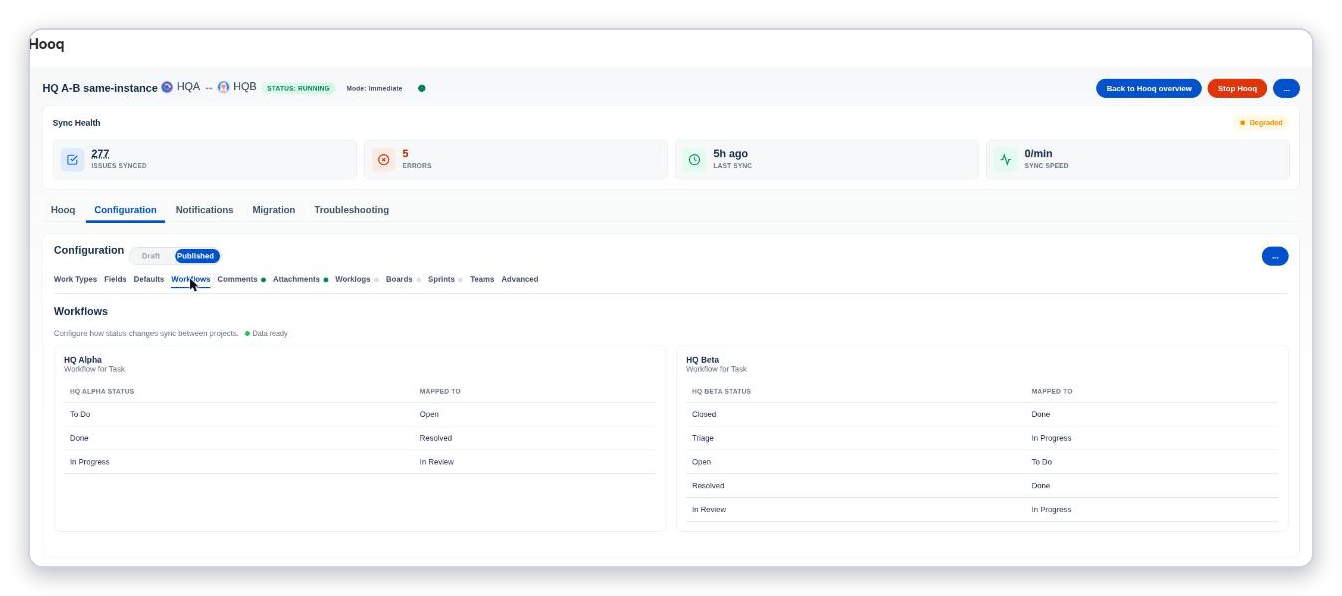
The Workflows tab shows the finished mapping.
Choose the workflow of each project and select Next.
Match every status of project A to a status of project B, select Next, then match the other direction.
Select Save Mapping.
You should see: Workflow mapping saved successfully.Select Publish Draft.
Expected result
When you change the status of a work item, its copy moves to the matched status. If several quick changes happen, the copy ends on the final status.
Common mistakes
- Forgetting to publish.
- Leaving a status unmatched: the copy then stays where it was.
Related pages
Want to raise a ticket? Click here (opens in a new tab)