Hooq help centre

Manual Link
Already use another sync app for these two projects? You do not have to start again. Manual Link tells Hooq which work items already belong together. Hooq links each pair and, from then on, keeps it in step as your Hooq is set up. Nothing is copied.
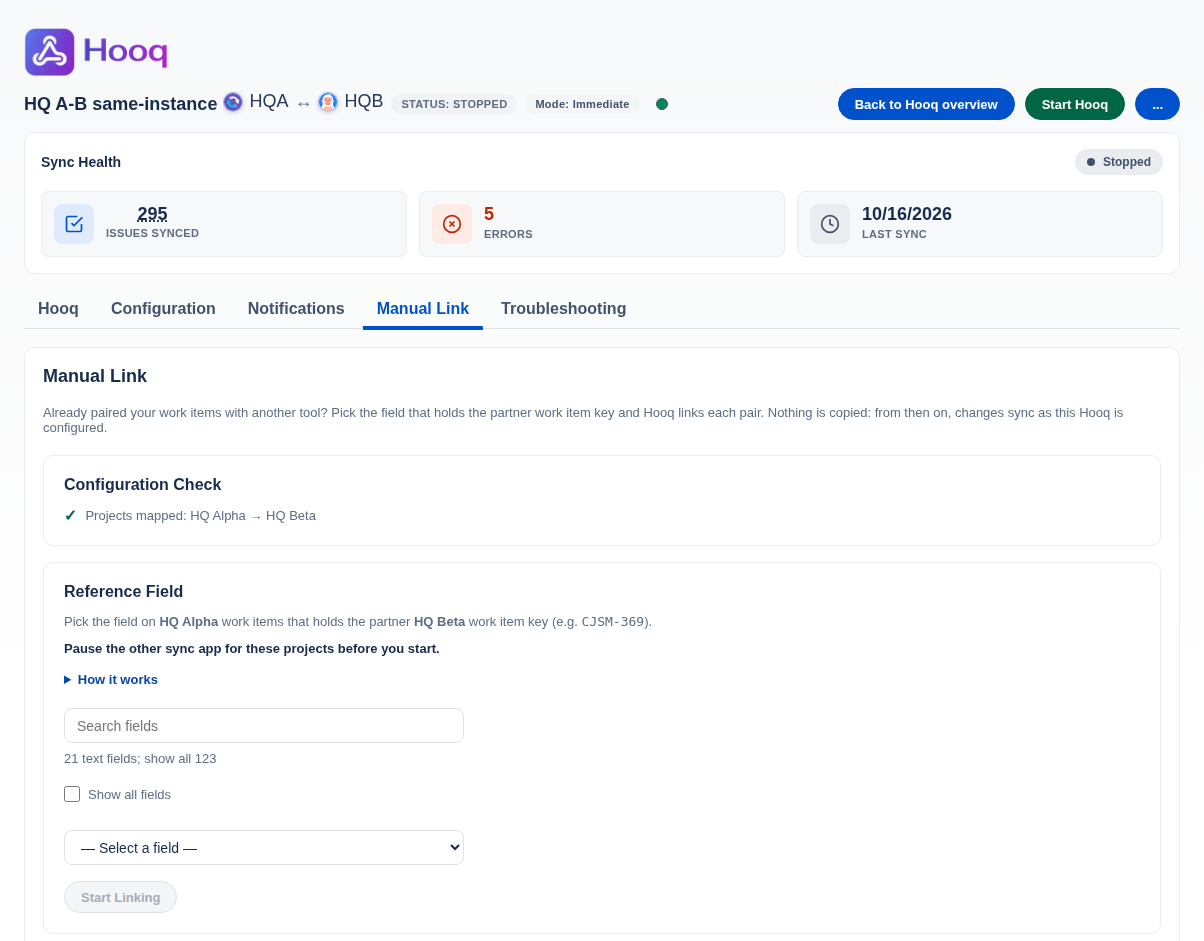
The Manual Link tab.
What Manual Link does
- You choose one field. It is a field on the work items of the project on this instance, and it holds the key of the partner work item (for example
ABC-369). - Hooq reads that field on the work items of this instance's project (the work types you matched, and the Limit Work Items filter if you set one). It checks that the key names a work item of the partner project, links the two work items and stores the link.
- Nothing is copied. The fields, comments and files that both work items already have stay as they are.
- From then on Hooq syncs as you configured it. Only changes made after the link are synced. Work done before the link is not sent again, and a Resync does not send the old history either.
- One instance is enough. Run Manual Link on either instance. The other instance learns about the link from the first change Hooq sends for the pair. Running it on both is harmless.
- When the pairs are linked and you have checked them, you can switch off or remove the other sync app. Hooq does not need it for the linked pairs.
Before you start
- You are a Jira administrator.
- The Hooq between the two projects is set up (work types, fields, workflows) and you have tested it with a work item or two. See Set up a Hooq.
- Every pair you want to link has the partner key in one field on this instance. A single-line or multi-line text field is the easiest. A key kept in a label or a select list also works: choose it with Show all fields.
- Pause the other sync app for these projects, so that two apps do not change the same work items while you link.
- Leave Limit Work Items empty (no JQL and no filter) while you link. Manual Link covers the work items of this instance’s project that have a matched work type, and it only goes through the ones the limit lets in. A Hooq started without a limit does not copy work items that already exist.
- If the field list is empty or out of date, open the Hooq tab and select Refresh Project Details.
Link your pairs
Open Hooq from the Apps menu, select Open in the row of your Hooq, then open the Manual Link tab.
You should see: Configuration Check with a tick and Projects mapped for both projects, and the Reference Field card.Read the line Pause the other sync app for these projects before you start. and make sure the other app is paused. Select How it works if you want the short explanation.
Find your field. Type a part of its name in Search fields.
You should see: a count such as 20 text fields; show all 119. Only text fields are listed at first. Tick Show all fields to see the others.Choose the field in the list (1 in the picture).
You should see: Field saved. The field is saved as soon as you pick it. From now on Hooq does not create a new copy of a work item on this instance that already names its partner in that field.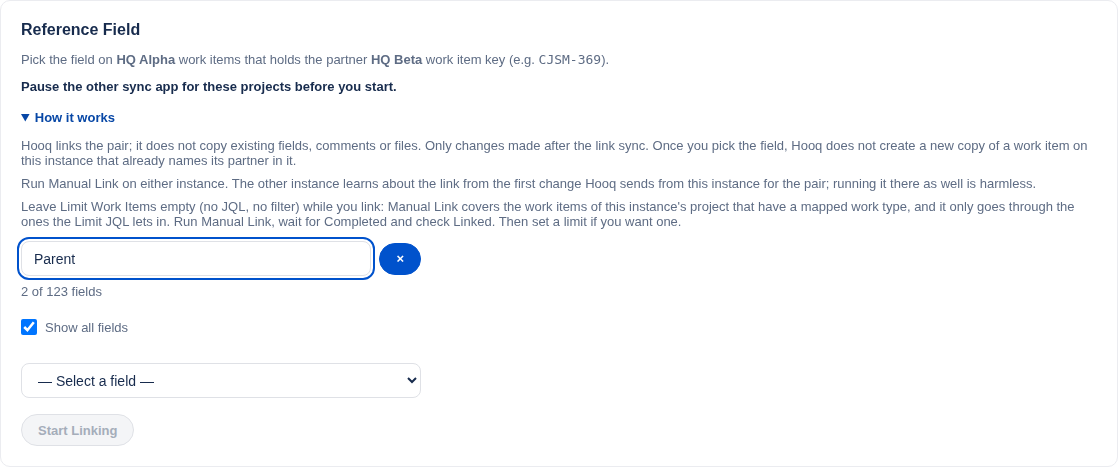
The Reference Field card with the field (1) and the Start Linking button (2).
Select Start Linking (2). The button stays grey until you choose a field.
You should see: the Link Status card with the status Running and the counts Processed, Linked and Skipped.Wait until the status is Completed, then check Linked. It should match the number of pairs you expect.
Now set the scope you want for this Hooq (for example a Limit JQL) and publish, as described in Publish and start.
The Link Status card
- Status: Running, then Completed. A run can also end as Cancelled or Failed. Select Cancel while it runs to stop it.
- Processed: the work items Hooq has looked at.
- Linked: the pairs Hooq linked.
- Skipped: work items Hooq passed over, for example because the field is empty, its value is not a key of the partner project, or the partner work item could not be found.
- Errors are listed under the card. When a run has ended, select Link Again to link more pairs. If that does not work, the message Failed to clear the previous link run. appears above the card; try again or tell your administrator.
Good to know
- Only new changes sync. A comment, file or worklog that was made before the link is not copied, and a work item created before the link is not back-filled. Changes made after the link sync as usual.
- Resync is safe on a linked pair. It sends only what a person changed after the link. The Hooq-level Resync never sends the assignee or the reporter of a linked pair. Only the newest 100 entries of a work item's history are checked.
- A pair you unlink on purpose is not created again while the field still names the old partner. Clear the field, or change it, to allow a new copy.
- The other instance may not know the pair yet. Until the first change for the pair reaches it, a Resync there sends nothing: the work item can show This issue is not Hooqed or the answer Linked issue not found. This is safe. The link is complete after the first change.
- A copy that Hooq itself made on the receiving instance is treated as a linked pair too if its reference field names the partner. Hooq then does not send that pair's older history either.
- The protection against a second copy works on the instance where you picked the field. It does not reach the other instance.
Related pages
Want to raise a ticket? Click here (opens in a new tab)