Hooq help centre
Migration
If your work items are already paired across the two projects by another tool, Migration registers those existing pairs in Hooq without sending the fields again. Future changes then sync normally.
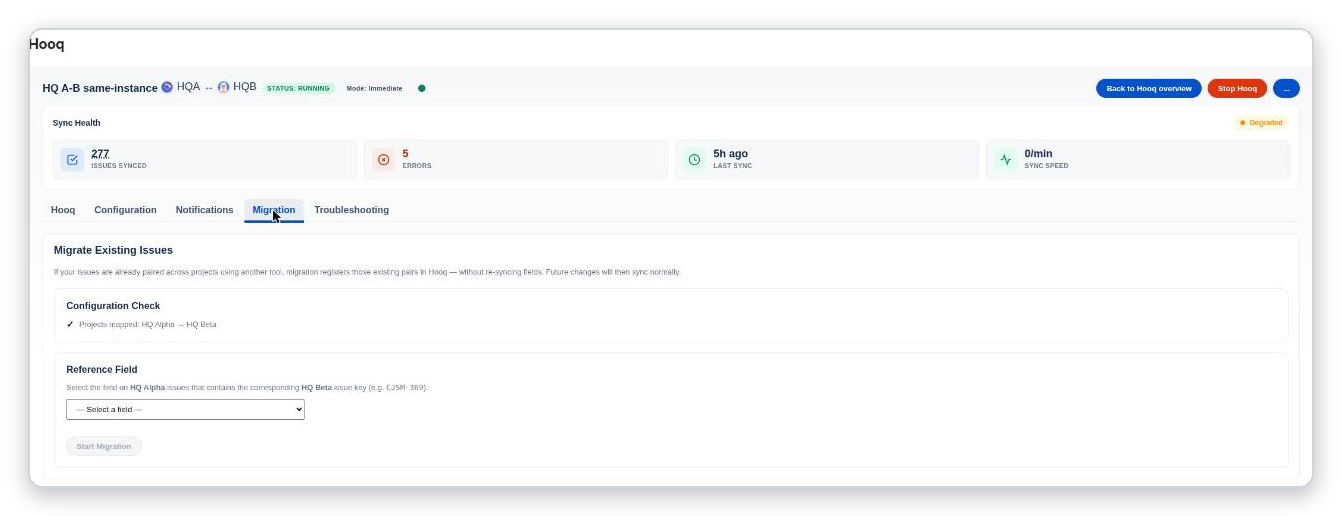
The Migration tab.
Before you start
- In project A, a field must hold the key of the matching work item in project B (for example
ABC-369). - Open the Hooq tab and select Refresh Project Details, so that the field list is current.
Run a migration
Open the Migration tab.
You should see: Configuration Check with a tick and Projects mapped for both projects.Under Reference Field, choose the field that holds the key of the other work item.
Select Start Migration. The button is grey until you choose a field.
A running migration shows the status Running, then Completed, Cancelled or Failed. Errors are listed under the job. When a migration has ended, select Run again to start a new one. If that does not work, the message Failed to clear the previous migration. appears above the job summary; try again or tell your administrator.
Related pages
Want to raise a ticket? Click here (opens in a new tab)