
Find the banner, open the full-screen list, and find your way around the sidebar.
- Sign in to the customer portal and open Requests (the page that lists all your requests).
- Above the list, find the banner. By default it says “Switch to PortalPilot”; your admin can change the text and the button label.
- Select the button (by default “Open PortalPilot”). PortalPilot opens full screen.
- To leave, use Jira’s close button at the top of the window. You are back on the Requests page.
Where it opens
- Your admin chooses the first page: Pivot, My requests or All requests.
- If you reload the page, or open PortalPilot again in the same browser tab within 12 hours, it continues on the screen you last had open. Search text and custom-field filter values are not kept.
- A link copied from PortalPilot opens it straight away, with the filters and columns in the link.
The sidebar
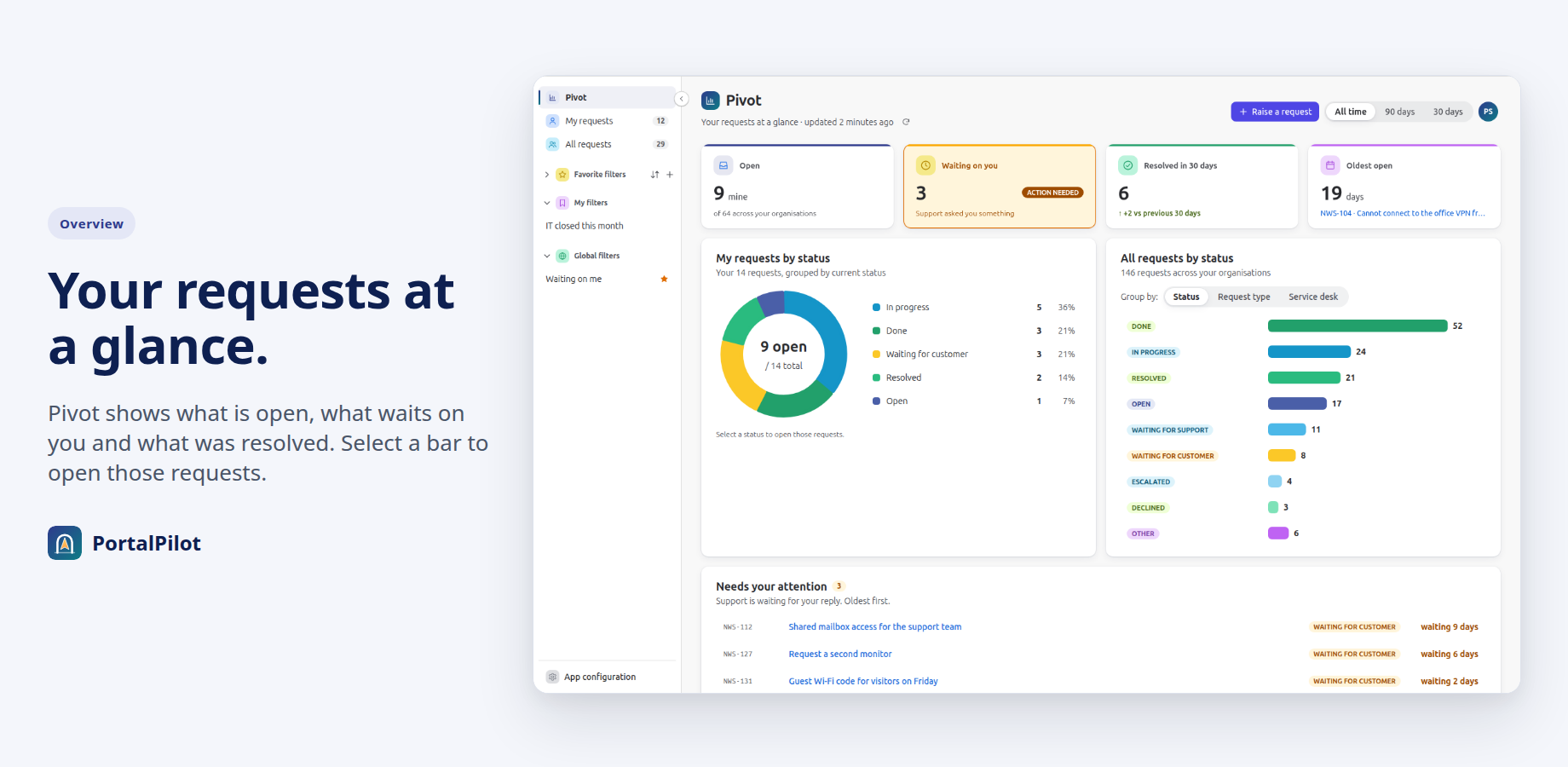
- Pivot, if your admin has it turned on.
- My requests and All requests, each with its count if your admin shows totals.
- Favorite filters, My filters and Global filters. The + beside Favorite filters opens Browse filters.
- At the bottom: a Help Center or custom link, if your admin turned it on, and App configuration for Jira admins.
- On a narrow screen, select Views to open the sidebar.
If you do not see the banner
- You may not be signed in.
- Your admin may have hidden the banner.
- Your admin may have limited who can use PortalPilot. If you open a PortalPilot link, you see “PortalPilot is not available to your account.”
Related pages
Need help with PortalPilot? Contact us