
Every setting on the Visibility, Export, Banner, Header link, Security Level and Data collection tabs, with its default.
Open Jira settings, Apps, PortalPilot, General settings. The page has six tabs. The last two only explain how PortalPilot works and have nothing to set.
- One Save changes button at the foot of the page saves every tab together. Discard throws away unsaved changes.
- A tab with a value that needs fixing shows a Fix label, and Save changes stays off until it is fixed.
- Settings are one set for the whole site, so a saved change applies to every customer.
Visibility: who can see the page
Who can open PortalPilot on the portal. Default: Everyone.
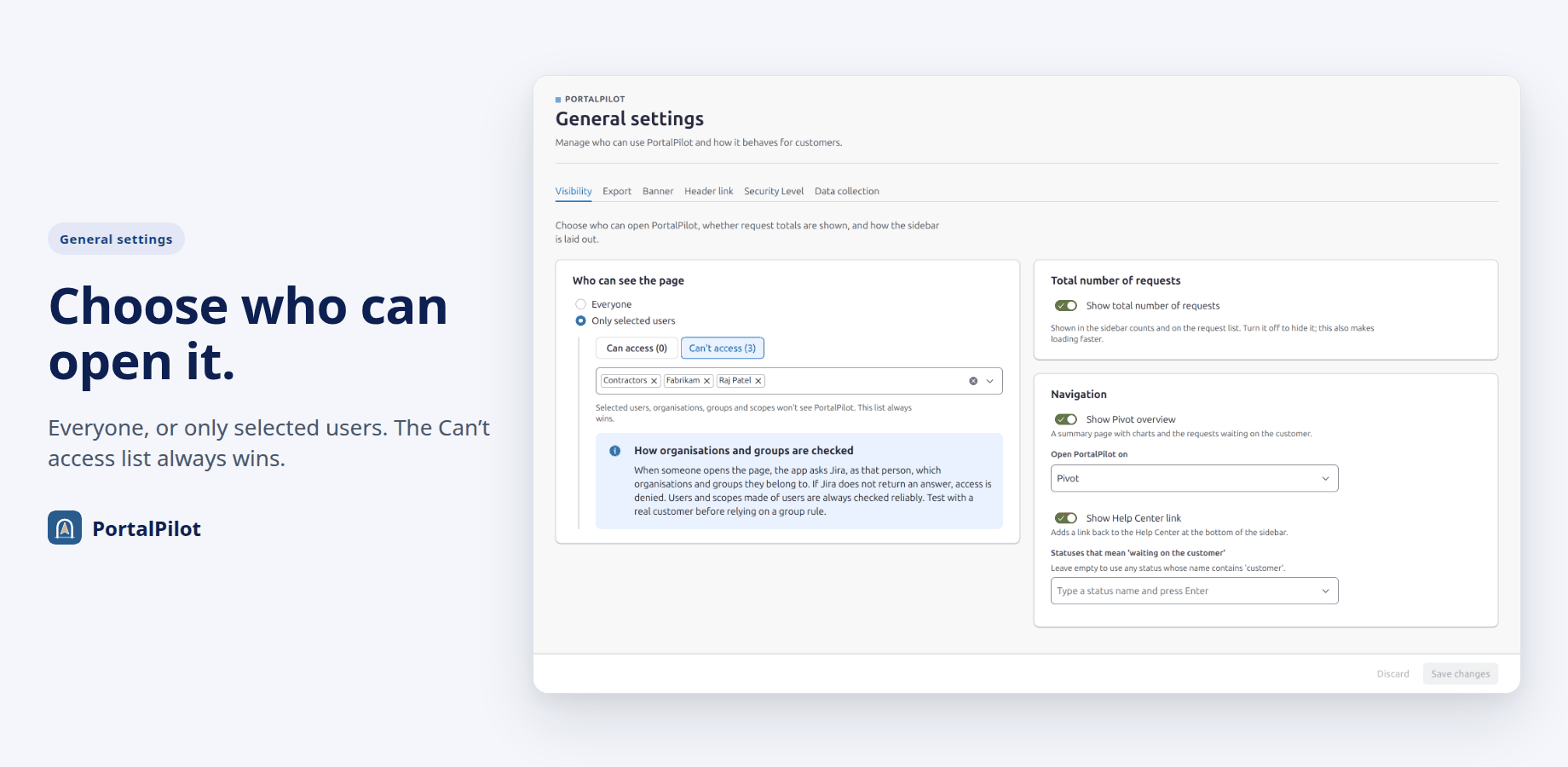
- Everyone: every signed-in portal user.
- Only selected users: edit two lists, Can access and Can’t access. Each takes users, organisations, groups and user scopes: up to 100 users, 50 organisations, 50 groups and 20 scopes per list.
Switching back to Everyone keeps both lists. While they hold entries, the tab shows the warning “Saved lists are not applied”: “Everyone can open PortalPilot. Your Can access and Can’t access lists are kept but not applied.” Choose Only selected users again to apply them.
How the lists work together:
- Can’t access always wins. Anyone on it is refused, even if they are also on Can access.
- If Can access has entries, only those people can open PortalPilot.
- If Can access is empty, everyone except the Can’t access list can open it.
- Organisation and group checks ask Jira, as that person, which organisations and groups they belong to. If Jira does not answer, access is denied. Users, and scopes made of users, are always checked reliably.
- There is no admin bypass. A Jira admin who is not allowed does not see PortalPilot on the portal.
People who are not allowed do not see the banner. If they open a PortalPilot link, they see “PortalPilot is not available to your account.” Visibility is checked on the server for every action, not only when the page loads.
Visibility: total number of requests
Show total number of requests. Default: on. It shows the counts beside My requests and All requests and the total under the list. Turn it off to hide them; lists also load faster.
Visibility: navigation
- Show Pivot overview. Default: on. Off removes Pivot from the sidebar.
- Open PortalPilot on: Pivot, My requests or All requests. Default: Pivot. Pivot cannot be chosen while Show Pivot overview is off; if Pivot is turned off while it is the start page, the start page becomes My requests. A customer who reopens PortalPilot in the same browser tab within 12 hours continues on their last screen instead.
- Show Help Center link. Default: off. On adds a link at the bottom of the PortalPilot sidebar. Its name and destination are set on the Header link tab.
- Statuses that mean “waiting on the customer”. Default: empty. Type a status name and press Enter to add it, up to 50 names of up to 100 characters. Names match a request’s status exactly, ignoring case. Left empty, any status whose name contains “customer” counts. These statuses drive the Waiting on you tile and Needs your attention on Pivot.
Export
- Allow customers to export requests. Default: on. Off removes Export to CSV and Export to XLSX from the “…” menu, and the server refuses exports.
- Maximum number of requests per export. Default: 1,000. A whole number from 1 to 1,000. Each export reads up to this many requests before the file is built, so a lower limit keeps waiting times short and files small.
Banner
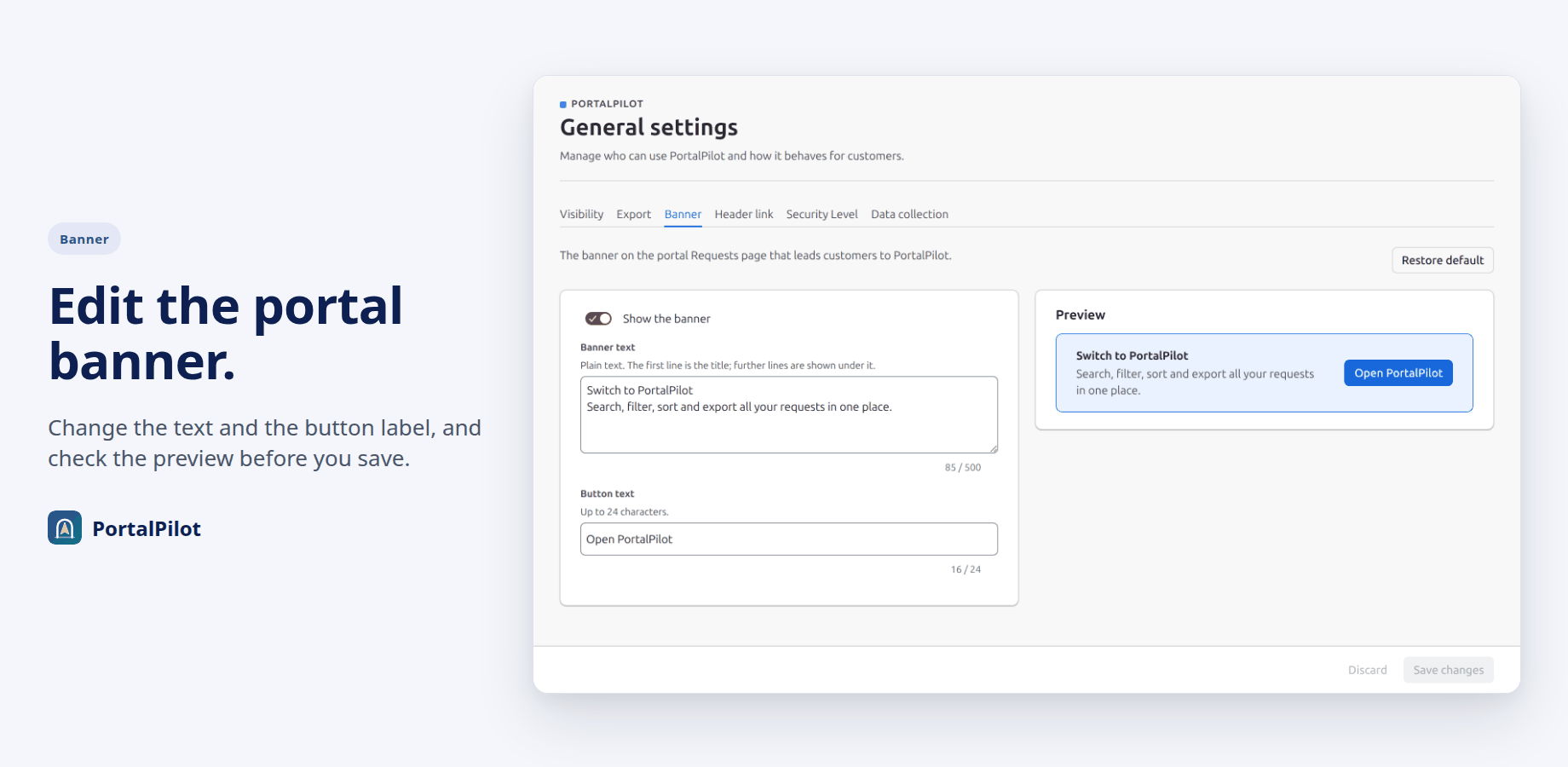
- Show the banner. Default: on. Off hides the banner on the portal’s Requests page. A copied PortalPilot link still opens PortalPilot for anyone Visibility allows.
- Banner text. Default: “Switch to PortalPilot” on the first line and “Search, filter, sort and export all your requests in one place.” on the second. Plain text, up to 500 characters. The first line is the title; further lines are shown under it. If it is left empty, the portal shows the default text.
- Button text. Default: “Open PortalPilot”. 1 to 24 characters.
The Preview shows the banner as customers will see it. Restore default puts the default banner back in the form; select Save changes to apply it.
Header link
The name and destination of the link at the bottom of the PortalPilot sidebar. It appears only when Show Help Center link is on.
- Help Center. Default. The name is fixed as “Help Center” and the link opens the portal’s Help Center.
- Custom link: a name of 1 to 24 characters and a full https:// address of up to 500 characters. The address cannot hold a user name or password.
For a link outside your Jira site, Jira first shows its own “Opening external page” confirmation.
Security Level
This tab only explains how security works. PortalPilot reads every request as the signed-in customer, so Jira applies work item security levels itself. There is no separate check and nothing to switch off. Each list, count and export works on up to 1,000 matching requests, the most recently active first; that limit never lets a restricted request through.
Data collection
This tab only explains that the app collects no analytics and sends no data to the developer or to any third party. Settings are kept in the app’s own storage in your Jira site. There is nothing to turn on or off.
Related pages
Need help with PortalPilot? Contact us