
Who can install PortalPilot, where to find its admin page, and what customers see straight after install.
Who can install
A Jira admin of your Jira Service Management Cloud site. The same person, or another Jira admin, then configures it.
Install from the Atlassian Marketplace
PortalPilot is a paid app, sold through the Atlassian Marketplace. A Jira admin installs it on your site from its Marketplace listing, like any other Marketplace app. There is no separate installation link.
- Open the PortalPilot listing on the Atlassian Marketplace, or search for PortalPilot from the apps section of Jira.
- Start the free trial or buy a subscription for your Jira Service Management Cloud site.
- Review the permissions the app asks for, and confirm.
The permissions it asks for are listed in Before you start. None of them lets it change requests.
Free trial and subscription
A free trial is available through the Atlassian Marketplace. Atlassian handles the trial, billing and renewals. While the trial or subscription is active, PortalPilot works in full. If it ends, customers stop seeing PortalPilot but your settings and saved filters are kept. See Subscription, trial and licensing.
Find the admin page
- In Jira, open Jira settings, then Apps.
- In the sidebar, find PortalPilot. It has five pages: Get started, General settings, Scopes configuration, Fields configuration and Filters management.
- Start with Get started. It is the page that opens first.
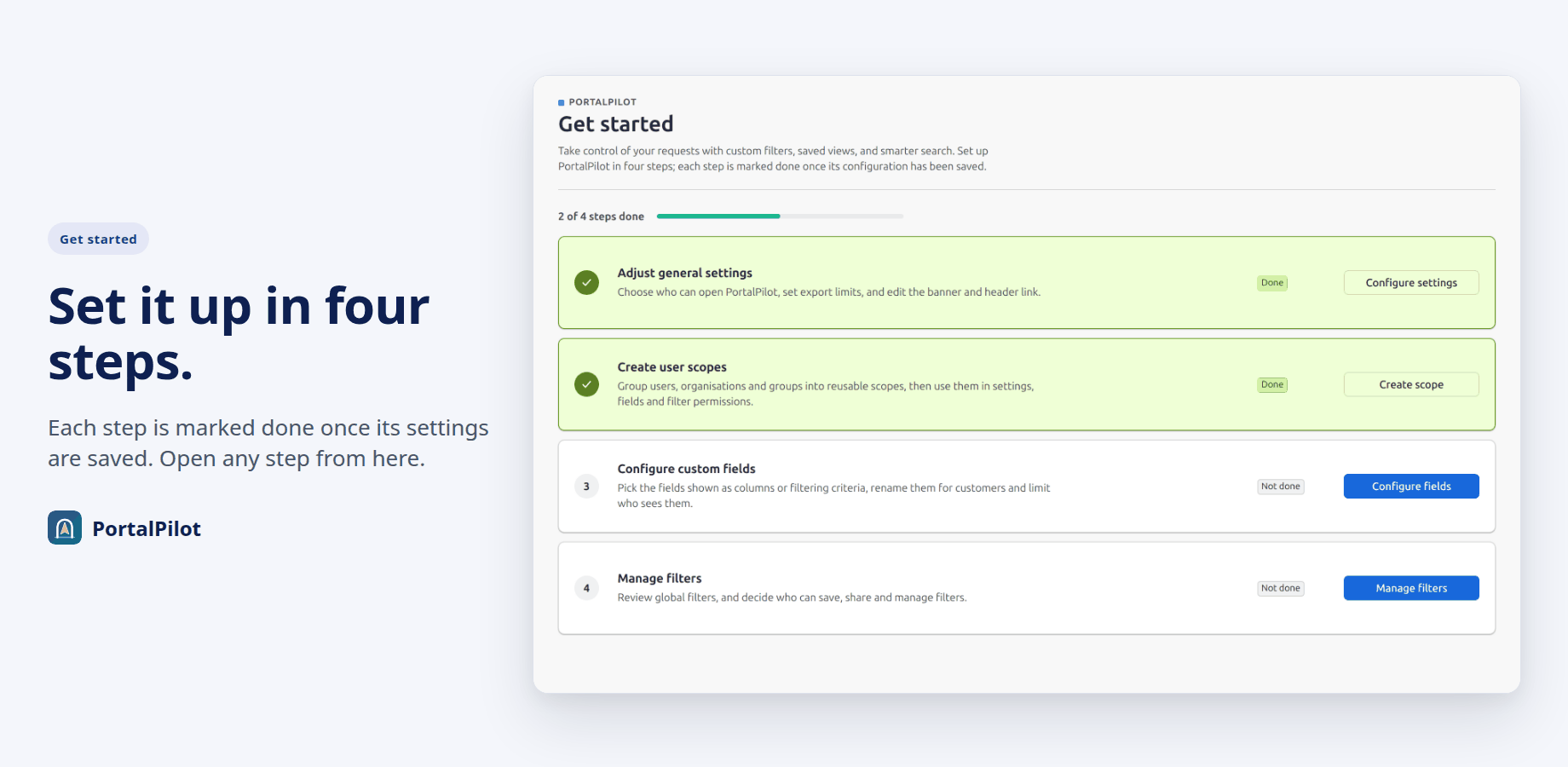
Jira admins can also reach it from the portal: inside PortalPilot, App configuration at the bottom of the sidebar opens the admin page.
Only Jira admins can open these pages. Every change is checked with Jira on the server. If Jira does not confirm the person is a Jira admin, the change is refused.
What happens straight after install
PortalPilot works with its defaults before you change anything, as soon as the trial or subscription is active:
- Every signed-in customer sees the banner on the portal’s Requests page. Visibility is set to Everyone and the banner is on.
- PortalPilot opens on Pivot.
- Export is on, up to 1,000 requests per file.
- The usual columns and filters are offered. No custom fields are offered until you turn them on.
- Everyone can save filters and share them with everybody. Only Jira admins can manage global filters.
- The Help Center link is off.
The full list is in the Admin settings reference.
If you want to set it up before customers see it
- In General settings, Visibility, choose Only selected users and add yourself or a test group to Can access.
- Or switch the banner off in General settings, Banner. Note that a copied PortalPilot link still opens PortalPilot for anyone Visibility allows, even with the banner off.
Related pages
Need help with PortalPilot? Contact us