

Download the list as CSV or XLSX.
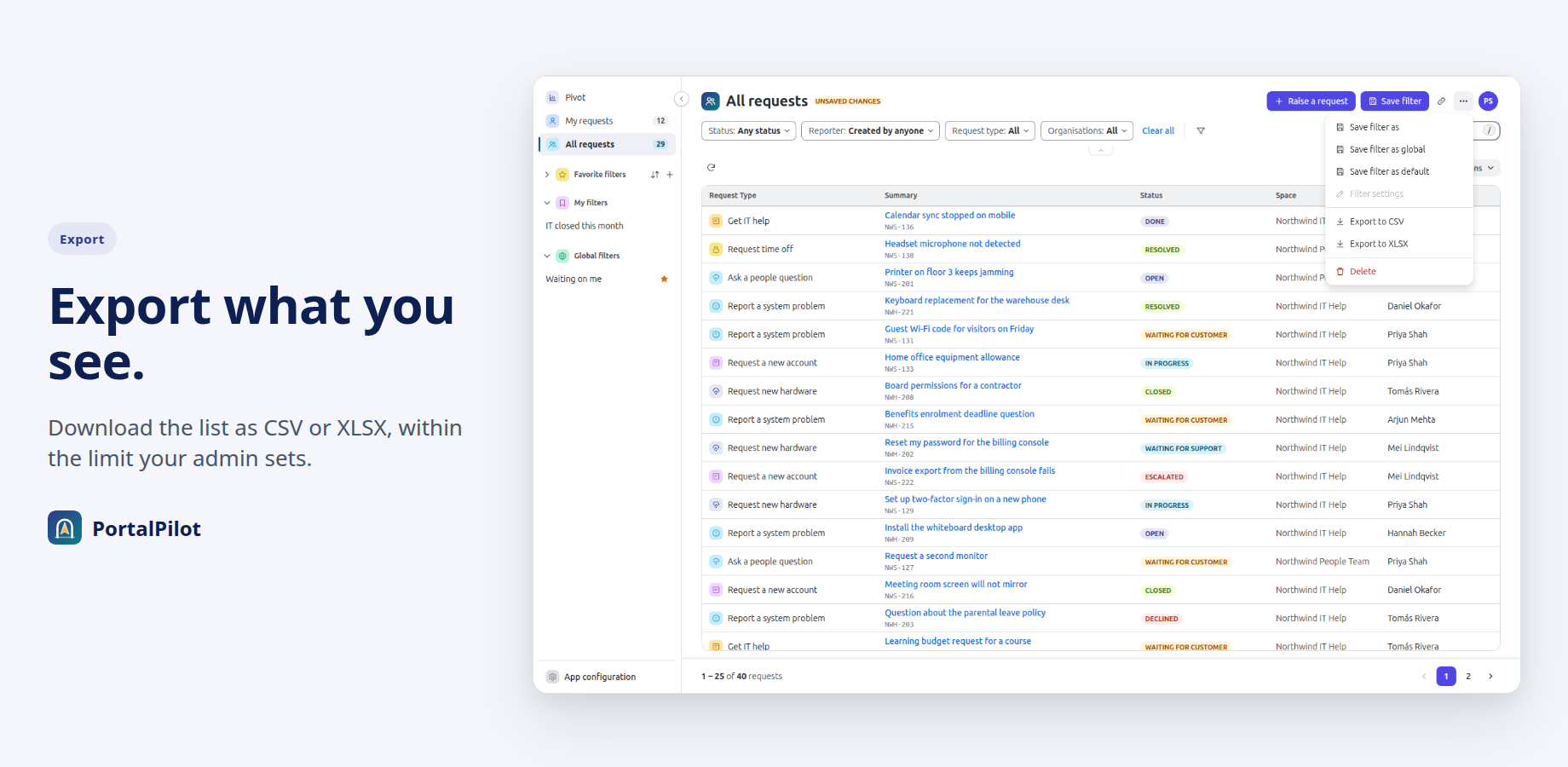
- Set up the filters, columns and sort you want.
- Open the “…” menu.
- Choose Export to CSV or Export to XLSX.
- In the dialog, choose the Date/Time format (and, for CSV, the delimiter), then select Export.
Export choices
The dialog is titled Export requests to CSV or Export requests to XLSX.
- Delimiter, for CSV only: Comma (,), Semicolon (;), Tab or Pipe (|). Default: Comma (,).
- Date/Time format: dd/MM/yyyy hh:mm a, MM/dd/yyyy hh:mm a or yyyy-MM-dd HH:mm. Default: dd/MM/yyyy hh:mm a. hh:mm a is a 12-hour time with AM or PM; HH:mm is a 24-hour time. The Created column uses this format, in your browser’s time zone.
- Close leaves without exporting. Export starts the file.
What is in the file
- The columns you see, in the same order, and the requests in the list’s sort order.
- Only requests Jira lets you see.
- Up to the export limit your admin sets, at most 1,000 requests. If more match, the export stops there and the message says some requests are not included. A very wide view can also stop early, with the same message.
Good to know
- If your admin turns export off, the export items are not in the menu. If it is turned off while PortalPilot is open, the export fails with “Export is turned off by your administrator.”
- The file is named portalpilot-YYYY-MM-DD.csv or portalpilot-YYYY-MM-DD.xlsx, with the date of the export in UTC. Near midnight it can differ from your local date.
- A message shows while the file is prepared. Large exports can take longer.
- If your browser blocks the download, the message offers Save exported file, and for CSV also Copy as CSV.
Related pages
Need help with PortalPilot? Contact us