

A validator checks a move when someone makes it. If the check fails, the move is refused and the person sees the validator’s message.
The message people see
- Every validator has a message box (Error message or Message shown when the check fails). Your text is shown exactly as you type it.
- Left empty, the standard message is used: The transition is blocked by a Simple Workflow Automation validator.
Settings on every validator
- Conditional validation: then Validate only when: and rows from the no-code builder. When those rows are not true, the move goes ahead without the check.
- Skip validation when cloning or creating an issue.
The eleven validators
Required fields
- Field(s) (required): search and add fields. The first choice, New attachment on this transition, needs a transition screen.
- Blank text and an empty rich text also count as empty: when ticked, text of only spaces and rich text with no words count as empty too. Without it, a field is empty only when it has no value or an empty list.
Needs a new file
Refuses the move unless a file is attached during it. The transition needs a transition screen where the file is added; without one this rule always refuses.
Required comment
Refuses the move unless a comment is added during it. A comment of only spaces counts as no comment. Like Needs a new file, it needs a transition screen.
Related work items rule
The same settings as the Related work items condition, plus two modes for the transition screen: Require the creation of issue links on the transition screen and Validate issue links added on the transition screen, if any. Both need a link type and a transition screen with Linked Issues.
People rule
The same settings as the Allowed people condition, with a message.
Expression rule (build your own)
The same settings as the Expression gate condition. The move is allowed when the rows or expression are true; when they are not, the message is shown.
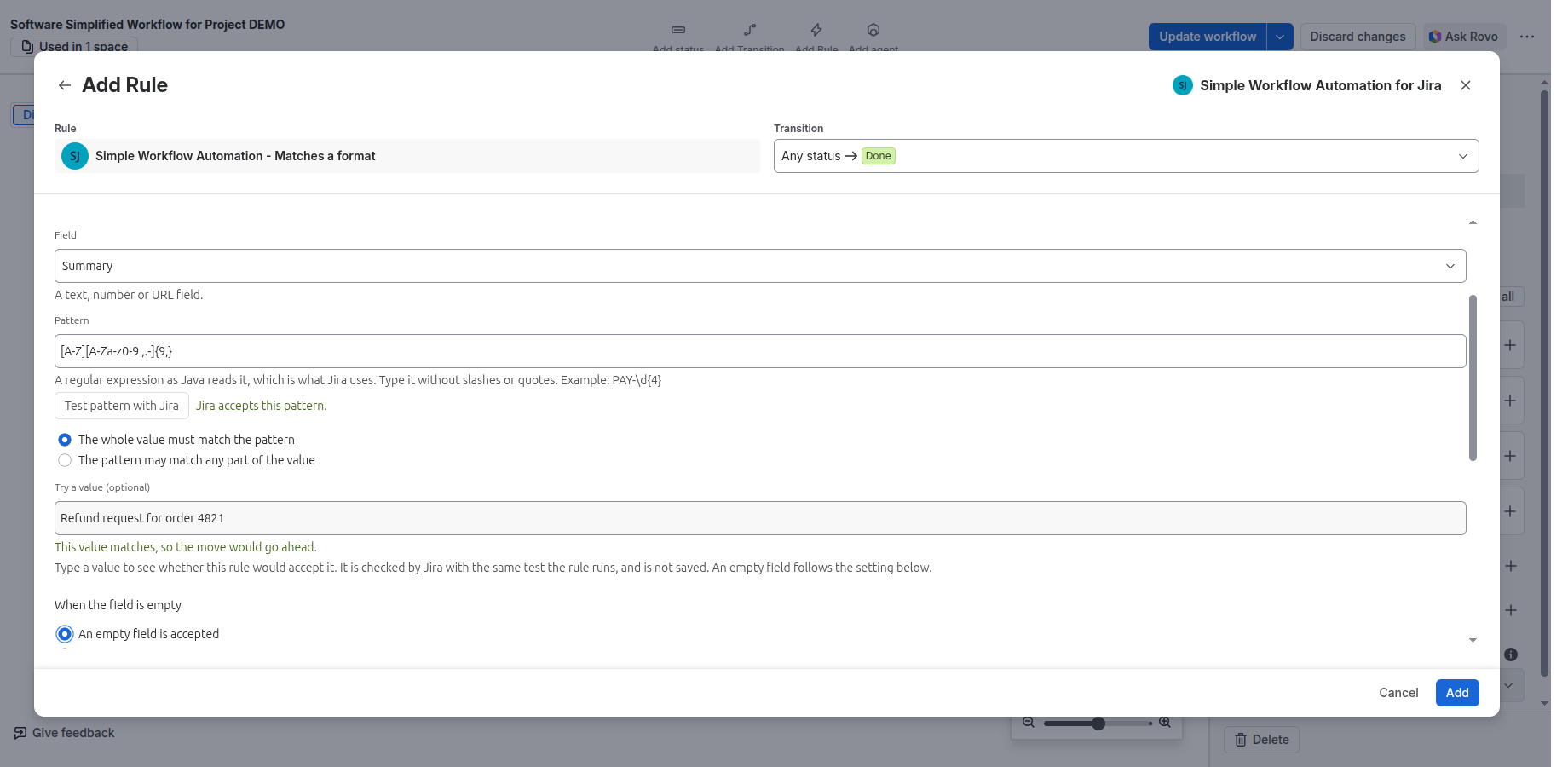
Matches a format
- Field: a text, number or URL field. Pattern: a regular expression as Java reads it, which is what Jira uses, typed without slashes or quotes, for example
PAY-\d{4}. Test pattern with Jira checks it. - The whole value must match the pattern or The pattern may match any part of the value.
- Try a value (optional): not saved; says whether the move would go ahead.
- When the field is empty: An empty field is accepted (the default) or An empty field is refused, with the same message.
Compare dates
- Date field, then It must be: equal to, different from, before, on or before, after, or on or after.
- Compared with: Another date field or The moment of the transition (now), plus or minus an optional amount of weeks, days, hours or minutes (up to 1,000,000). Hours and minutes need a date and time field.
- When a date is empty: The move is refused, with the message (the default) or The move goes ahead.
- A date compared with a date and time is compared by day, in the time zone of the person using Jira.
Must change or stay
- Fields: one row per field, each must be changed by this move or must stay as it is. Each field can be listed once.
- For "must be changed", the field must be on the transition screen, or the move is always refused. Only what this move itself changes counts. On a create, the rule passes.
Limit how many
- Search (JQL): up to 2,000 characters, with no ORDER BY. Tokens such as
{{assignee}},{{project}},{{key}},{{issuetype}},{{reporter}}and{{field:customfield_10100}}are filled in from the work item; write them without quotes.currentUser()cannot be used. - Allow the move when: fewer than, at most, exactly, at least or more than a number from 0 to 4,999 match, or this work item matches the search. Leave this work item out of the count is on by default.
- When a {{value}} has none: the move is refused (the default) or goes ahead.
- The search runs as the app and only reads. If the check cannot be made, the move is refused with a fixed message saying why. The count can lag a moment, so two people moving work at the same time can both pass.
Checklist done
- Where the checklist is: Boxes typed in a text field ([ ] open, [x] ticked) or Data an app or script wrote to a work item property.
- For a text field: lines starting with
[ ]are open,[x]ticked. A field with no boxes is refused too makes an empty checklist fail. - For a property: the Property key, the Name to follow inside it (up to 4 names), and Complete when: the value is true, equals a number you choose, or equals another number in the property.
- Tick boxes made with the description editor cannot be read.
Where they work
Matches a format, Compare dates, Must change or stay and Checklist done: Works in team-managed projects too. Limit how many is for company-managed projects only, because its search runs as the app. The others: Company-managed projects only.
Related pages
Need help with Simple Workflow Automation? Contact us