

Three steps: install the app, open its admin page, and add your first rule to a workflow transition.
1. Install the app
- Simple Workflow Automation is coming to the Atlassian Marketplace. Once it is listed, a Jira admin installs it from the Marketplace onto your Jira Cloud site, like any other Marketplace app.
- Atlassian shows the permissions the app asks for. They are listed, with the reason for each, in the Trust Center. Approve them to finish the install.
2. Open the admin page
- In Jira, open Settings, then Apps, and choose Simple Workflow Automation in the left menu. Only Jira administrators see it.
- On the Rules tab, choose Scan workflows. The scan only reads your workflows and changes nothing. A new site shows No rules found yet until you add one.
3. Add your first rule
- Open a workflow in Jira’s workflow editor and select a transition.
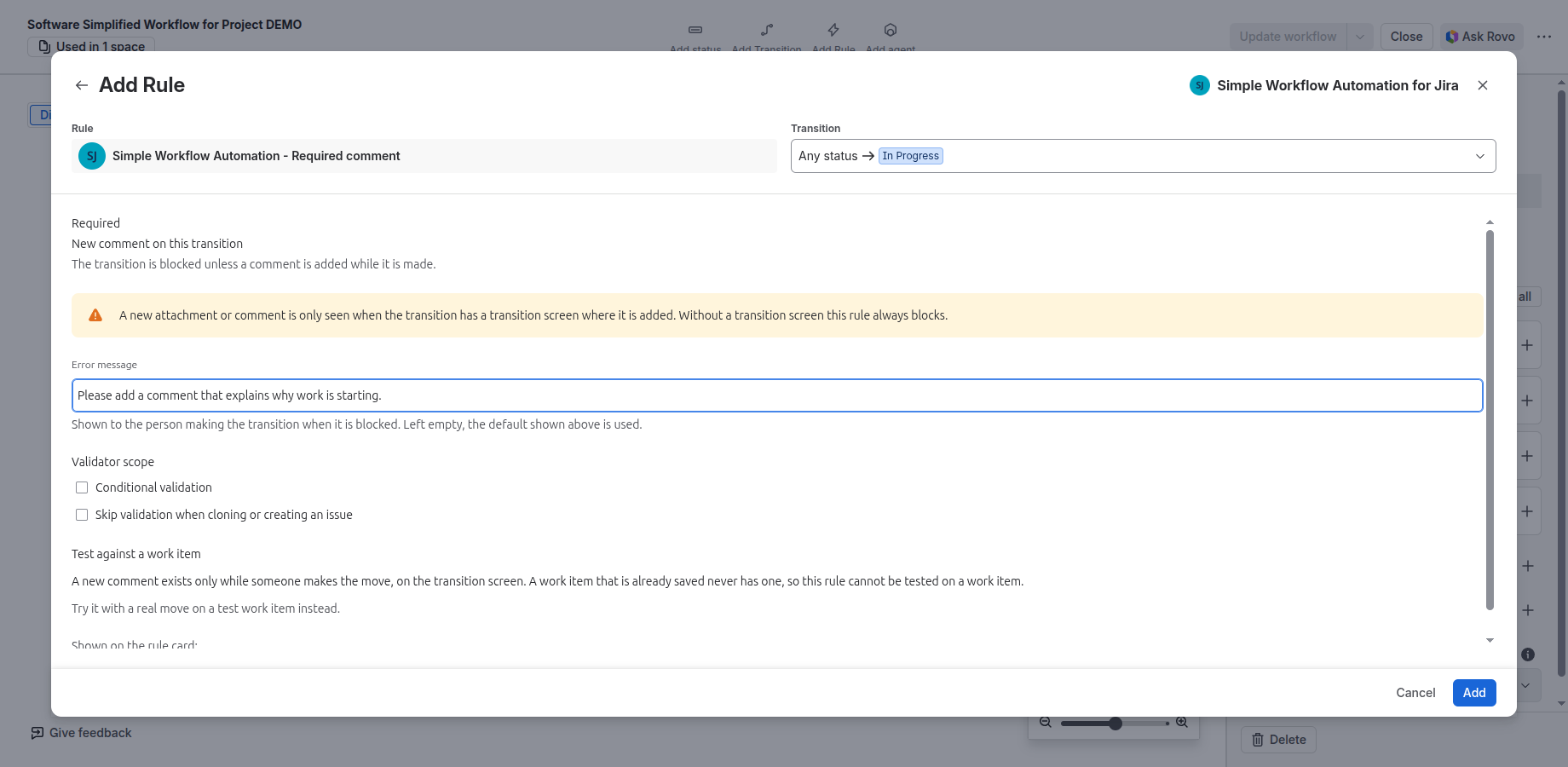
- Add a condition, validator or post-function. Pick one whose name starts with Simple Workflow Automation -. A good first rule is Simple Workflow Automation - Required comment, a validator.
- Fill in the rule’s screen. A validator has an error message, shown to the person making the move; leave it empty to use the standard one.
- Save the rule, then save or publish the workflow as Jira asks.
4. Test it, then watch it run
- Many rule screens have Test against a work item: type a work item key and choose Test. Nothing is saved or changed. See Switch a rule off, and test it.
- Make a real move on a test work item. For post-functions, open Run history on the admin page and look up the work item key to see what happened and why.
- Back on the Rules tab, choose Scan workflows again: your rule is listed under its title, with its own Turn off button in the Actions column.
Related pages
Need help with Simple Workflow Automation? Contact us