

A post-function runs after a move. The move has already happened, so a post-function that fails never undoes or blocks it. The reason is recorded in run history on the admin page.
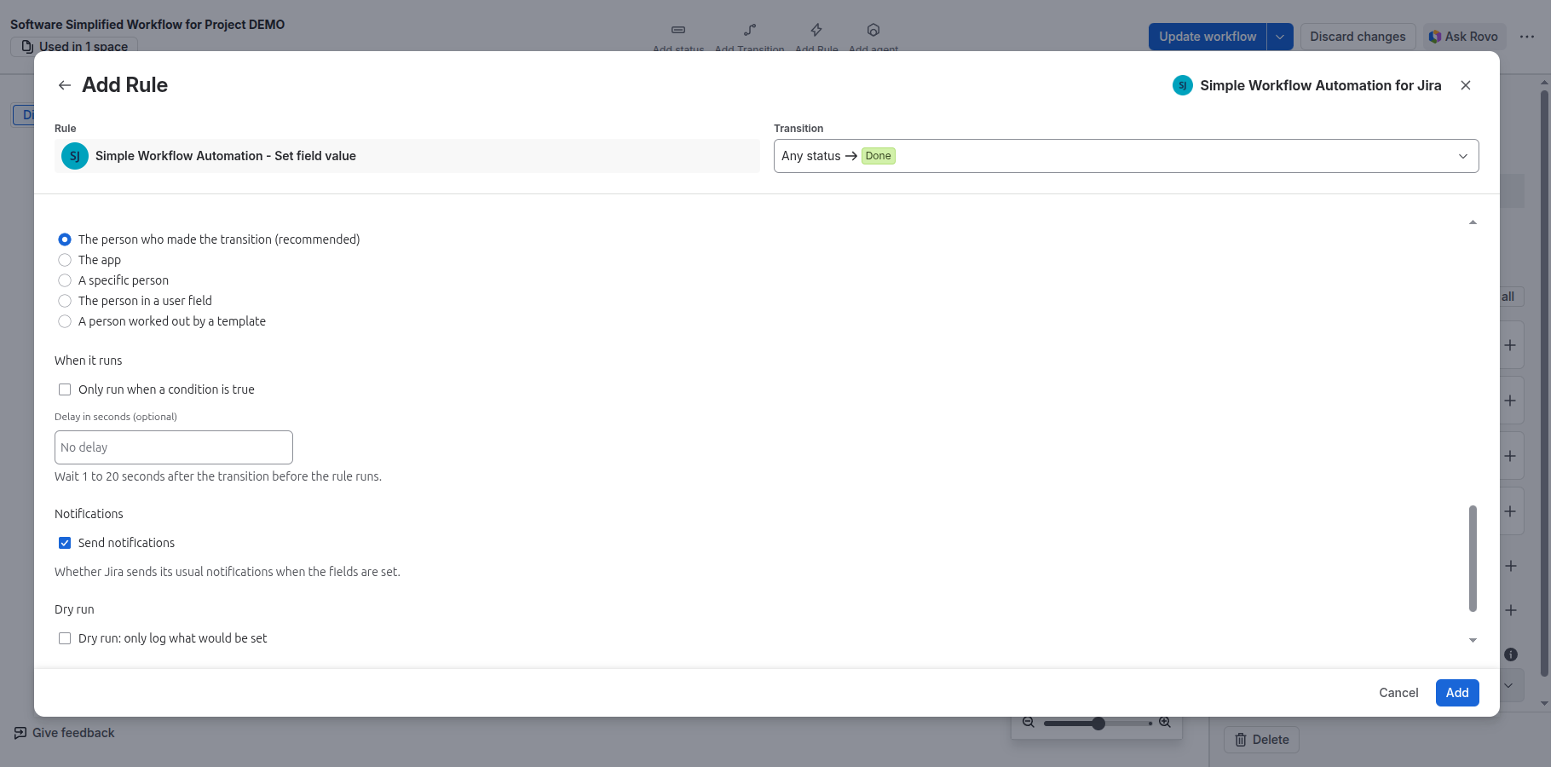
Settings most post-functions share
| Section | What it does |
|---|---|
| Who runs it | The person who made the transition (recommended), The app, A specific person, The person in a user field or A person worked out by a template. See Run as. |
| When it runs | Only run when a condition is true, with rows from the no-code builder, and Delay in seconds (optional): wait 1 to 20 seconds after the move. |
| Work items | Which work items the rule acts on: This work item, Its sub-tasks, Its parent (for a sub-task), The work items in this epic, The epic of this work item, Any linked work item, Work items linked with a link type, Work items named by a template, Work items found by a JQL search, and the parent or children one level up or down in the hierarchy. |
| Send notifications | On rules that change fields: whether Jira sends its usual notifications. Off by default on several rules. |
| Dry run | Only log what would be done; nothing is changed. See Dry run. |
Text boxes that take values from the work item use templates such as {{ issue.key }}, {{ issue.fields.summary }} and {{ currentUser.displayName }}. In a JQL search, put values in with | jql, which quotes and escapes them, for example summary ~ {{ issue.fields.summary | jql }}.
Fields
Set field value
- Fields to set: one row per field, all set in one change. Value is a template; an empty value clears the field.
- Per row: Treat the value as JSON, Only if the field is empty, Append to the existing value, Ignore an empty value, and Create missing values (versions and components that do not exist yet are created).
Clear fields
Fields to clear: each chosen field is emptied. A field that is not on the work item’s edit screen is skipped, and the run says so.
Copy fields
- Rows of Copy from and Copy to, between this and other work items (Copy from these work items, Copy to these work items).
- Per row: Only if the destination is empty, Treat the source as JSON, Ignore an empty source, Use the value before the transition, Append to the destination, Create missing values, and Join parent and child of a cascading field.
Add one to a number
Number field: one is added each time the rule runs; an empty field counts as 0. It can Run in the background, so the move finishes first.
Set field from user property
Copies a property stored against the person who made the move into a Field. If they have no property with that User property name, the run reports an error and the field is left as it is.
Save a property
Saves a property on the Current work item, its project, or the user. Treat value as JSON, Set only if property is empty and Ignore empty value are options. Anyone who can see the work item, project or user can read properties through Jira’s API, so never save secrets.
Comments
Post a comment
- Comment text with values from the work item, posted on the chosen work items.
- Who can see it: Everyone who can see the work item, Only members of a group, or Only people in a project role. Internal comment (service projects) posts an internal comment; if Jira does not confirm it is internal, the rule deletes it and reports that.
- It can Run in the background.
Copy comments
- Which comments: The latest comment, All comments, The comment typed on the transition screen, or The comments a template accepts. Public comments only leaves out restricted and internal ones.
- Whose name is on the copies: The original author, The app or One named person. Who can see the copies: the same as the original, everyone, a group, a project role, or internal.
- Copy inline images and Copy attachments mentioned in the comments. Each file can be up to 150 MB; a bigger one gets a note in the comment instead. A file is copied only into a copy everyone who can see the target may read.
- Each comment is copied once: running the move again adds nothing.
Moving work
Transition issue
- A list of transitions (by name or id, the first that applies is used, optionally only in a named workflow) or A script giving one transition per line.
- Fields set by the transition: values for fields on the transition’s screen. Comment text (optional) is added with the move.
Back to previous status
Moves the work item back to the status it had before. Return to the previous distinct status keeps looking back until it finds a different status. If no transition leads back, nothing changes and the run says so. The return move runs its own rules, so a pair of rules can send work back and forth.
Creating, linking and deleting
Create work items
- Where the new work item goes: the project, the work type and the parent (none, this work item as a sub-task, or another work item).
- Summary comes from: text you write, this work item’s summary, or another field.
- Which fields are copied: only the fields you list, the fields on the create screen, or every field the new work item can have; each value the same, from another field, fixed, or JSON.
- Reporter of the new work item, Copy the sub-tasks to the new work item, Comments to copy, and a Link to the new work item.
- Create one work item for each value in a list: there is no limit on the number; five are made at a time and the rest follow in the background.
- Write the created-from property on the new work item lets a repeated run find what it already made, so it is not made twice.
- Who creates it has three choices: the person who made the move, the app, or a specific person.
Connect matching work items
Links the work items a JQL search finds to this work item, with a chosen Link. Maximum work items to connect (1 to 50); an optional Filter is checked on each match.
Remove matching links
Removes this work item’s links where a Condition template is true. It is worked out once for each link. Sub-task and epic relations are never touched.
Delete
- Deletes the chosen work items for good, with their comments, attachments and history. People making the move are not asked to confirm.
- Also delete the sub-tasks: without it, a work item with sub-tasks is not deleted. With a JQL search you must type
deleteto confirm. - With "This work item", put it last: rules after it on the same transition have no work item left.
People and visibility
Assign
- Assign to: the person who made the transition, the reporter, the project lead, the project’s default assignee, the person who commented last, one named person, a component lead, a user field, a member of a group or role, the last role member who had it, a template, or Nobody (clears the assignee).
- Where several people qualify: the first by name, the least busy (fewest unresolved work items), or one at random.
- Skip people who are no longer active, Leave out the current assignee, and Fail when nobody qualifies.
Add or remove watchers
Adds or removes the reporter, the assignee, named people, a user field, group or role members, people from a template, or (remove only) Everyone who is watching. It sends no email. Changing someone else’s watching needs Manage Watcher List.
Set who can see the work item
Sets a Security level when the person who made the move has a chosen Project role. The change is made by the app. Check the level belongs to the security scheme of the projects that use the workflow.
Display message to user
- Shows a flag to the person who made the move, on the work item page: a Title, optional text, a look (information, success, warning or error) and an optional link to a web page or work item.
- It shows a few seconds after the move if the page is open or opened within two minutes. It does not show for moves made on a board, backlog or list.
- Anyone who can see the work item can read the message text through Jira’s API.
Labels, components and time
Add or remove labels
Add or Remove labels: These names or Names worked out by a template, separated by spaces or commas.
Add or remove components
The same, for components, separated by commas or new lines. A name the project does not have is skipped when the rule runs, and run history says so.
Log work
Time spent as seconds or a mix such as 1d 2h 30m; a start time; Adjust the remaining estimate; and a Work description (optional). Jira refuses a time under one minute.
Email issue
- Subject, Text body and HTML body (optional), with values from the work item. In the HTML body, values from the work item are escaped.
- Who gets it: the reporter, assignee, watchers, voters, specific people, user fields, groups, project roles, people or groups worked out by a template, and Plain email addresses (optional). At least one recipient is needed.
- Mail is sent through Jira. See Email recipients for plain addresses and people who hide their address.
Several steps in order
Sequence of post-functions
- Runs a list of steps one after another, each finishing before the next starts. Each step opens that rule’s own screen. A step can be switched off and kept.
- One Who runs it and one condition and delay for the whole sequence. Stop at the first error stops the steps after a failed one; earlier work is not undone.
- All steps together must fit Jira’s 32 KB limit for one rule; the screen warns as you get close.
Shared action
Runs a shared action: a named list of steps kept in one place and used by many transitions.
Where they work
Email issue, Set who can see the work item, Assign, Add or remove watchers, Copy comments, Sequence of post-functions and Shared action are for company-managed projects only. The others work in team-managed projects too, where they run only as the person who made the move. See Team-managed projects.
Related pages
Need help with Simple Workflow Automation? Contact us