

Three steps: install the app, set your brand, and add your first component.
1. Install the app
- MacroMint is coming to the Atlassian Marketplace. Once it is listed, a Confluence admin installs it from the Marketplace onto your Confluence Cloud site, like any other Marketplace app.
- Atlassian shows the permissions the app asks for. They are listed, with the reason for each, in Before you start. Approve them to finish the install.
2. Set your brand
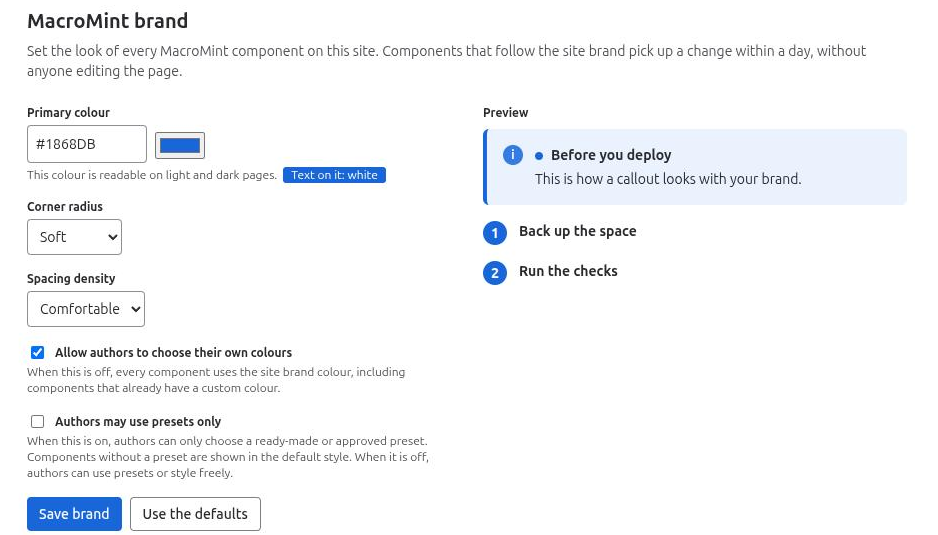
- Open Confluence administration (the gear icon), scroll the left menu to Apps, and choose MacroMint. Only Confluence admins can use this page.
- Set the Primary colour, Corner radius and Spacing density. The preview shows a callout and steps with your choices.
- Choose Save brand.
3. Add your first component
- Edit a page.
- Type / and the name of a component, for example Callout, and pick it.
- Fill in the form on the left. The Preview on the right changes as you type.
- Choose Save. For a Callout, type its text in the area under the component.
- Publish the page.
Related pages
Need help with MacroMint? Contact us