

Every team on a Confluence site picks its own colours for panels, buttons and status labels, so no two spaces look alike. When the company colour changes, someone has to open and edit every page by hand. MacroMint fixes both: a Confluence administrator sets one brand on one admin page, and every MacroMint component on the site follows it, including pages written before the change. MacroMint is coming to the Atlassian Marketplace.
What MacroMint adds to a page#
MacroMint adds six components to the Confluence editor: Callout, Steps, Cards, Button, KPI and Status. Each one takes its colour, corner style and spacing from the site brand, so a callout in one space and a set of cards in another look like they belong together.
Step 1: Open the brand page#
- Open Confluence administration with the gear icon.
- In the left menu, scroll to Apps and choose MacroMint. The page is called "MacroMint brand".
Only Confluence administrators can use this page. Anyone else sees "Admins only", and every change is checked again on the server, so the brand cannot be changed by another route. The admin page guide lists everything on it.
Step 2: Set the colour, corners and spacing#
The brand kit has three settings:
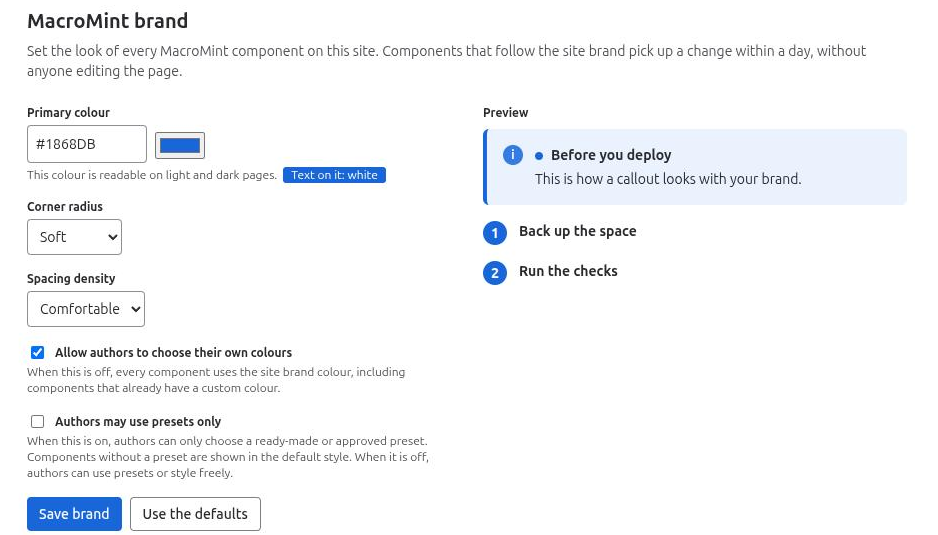
- Primary colour: a six-digit hex colour such as #1868DB.
- Corner radius: Sharp, Soft or Rounded.
- Spacing density: Compact, Comfortable or Spacious.
A preview shows a callout and steps with your choices before you save. Choose Save brand to save, or Use the defaults to go back to #1868DB, Soft and Comfortable.
Step 3: Let the readability check catch bad colours#
MacroMint refuses a primary colour that is too light or too dark to read on light and dark pages, and it gives the reason. The form also shows whether white or dark text will sit on the colour. A saved brand stays readable in both Confluence themes.
Step 4: Let existing pages catch up on their own#
Components that follow the site brand pick up a change within a day, without anyone editing the page. Each person's browser checks the brand about once a day. When an author opens a component whose brand changed since it was last saved, the editor tells them.
Step 5: Decide how far authors can move from the brand#
Two switches on the same page control this. Both are explained in presets and governance.
- "Allow authors to choose their own colours" is on by default. Turn it off and every component uses the brand colour, including components that already have a custom colour. Turn it back on and the custom colours return.
- "Authors may use presets only" limits authors to ready-made styles and presets you approved. Components without a preset are shown in the default style. A callout's tone, such as info or warning, carries meaning, so it is never limited.
Step 6: Give authors approved presets#
An admin can turn any styled component into a site preset:
- Open a component editor and style the component.
- Choose "Save as site preset".
- Give it a name of 1 to 40 characters.
The preset keeps the style, not the text. Each component type can have up to 15 presets, and they appear in every component editor for all authors. Update a preset's style from a component and every component that uses it follows. If two admins save at the same moment, the later save is refused with a clear message instead of overwriting the other.
Step 7: Check who changed what, and where components are used#
The change history lists brand and preset changes: who made each one, when, and what changed. It keeps the last 200 changes and stores the admin's Atlassian account ID, never a name.
The usage report lists the pages and posts that use MacroMint components, filtered by space key and component, with a count per page. It runs through Confluence search as the admin, so it shows only pages that admin can view.
Where the brand is kept#
The site brand and presets are kept in Forge storage on Atlassian's cloud. MacroMint runs on Atlassian Forge, with no servers of its own and no outside address. The details are on the data and privacy page.
Exporting branded pages#
Pages with MacroMint components export to PDF with their content. Other limits are listed on the known limits page.


